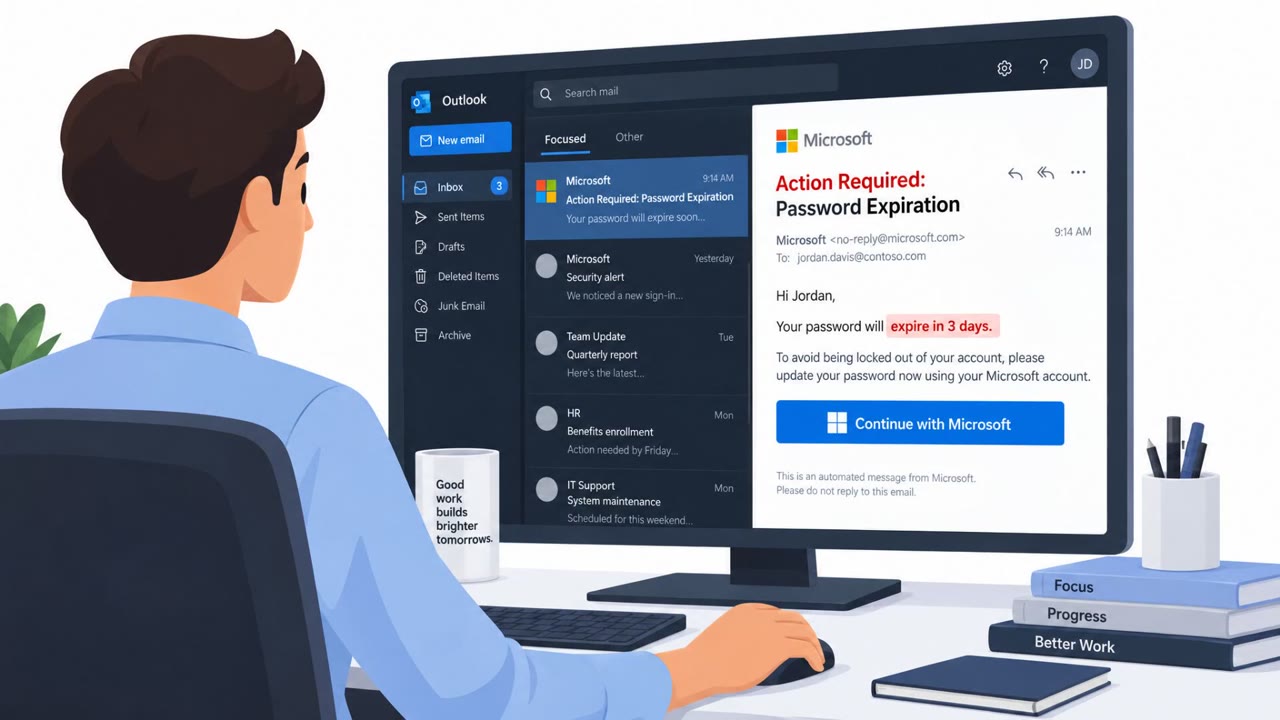
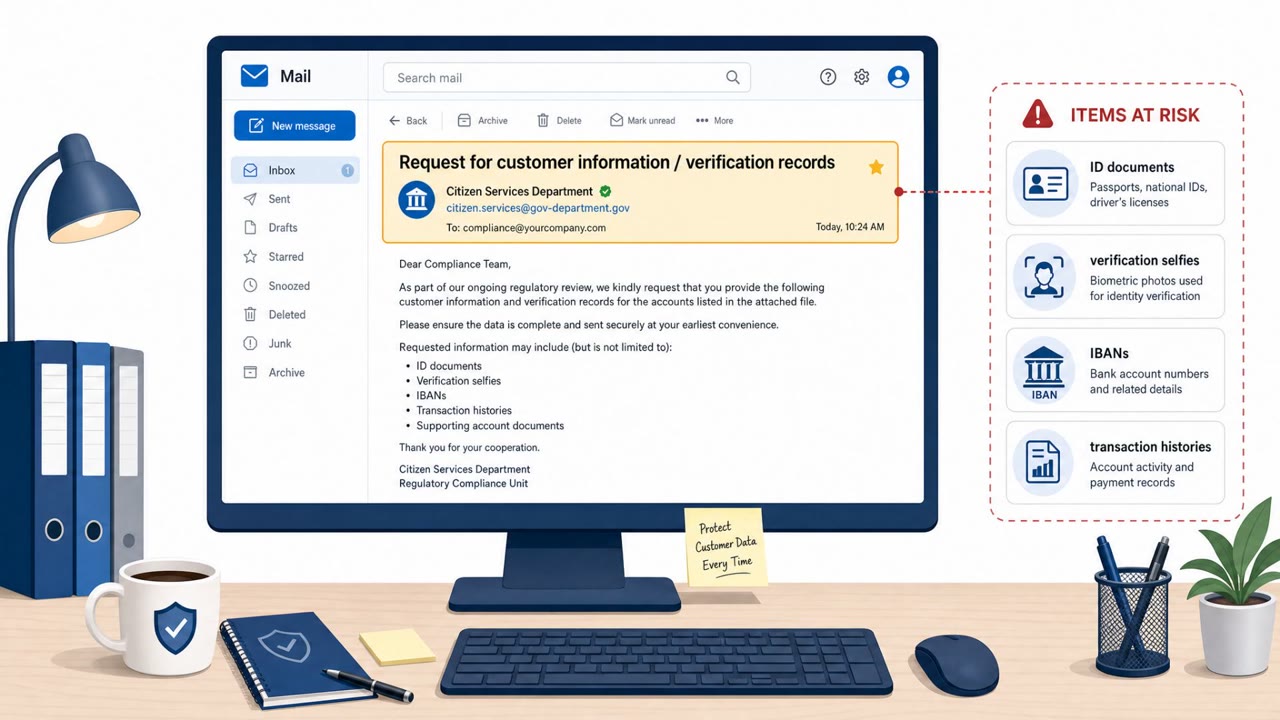
Researchers observed a phishing campaign that tricks employees into clicking a fake Microsoft Planner task email, then sends them to a real Microsoft login page. After the user signs in, the scam relies on an OAuth permissions prompt; approving it can grant attackers ongoing access to Microsoft 365 data like email, files, Teams chats, and calendars.
How the attack worked
This campaign impersonated a Microsoft Planner task-assignment notification, claiming that HR had shared payroll and benefits updates while displaying overdue employee tasks to create urgency. Recipients who clicked the embedded links were taken to a genuine login.microsoftonline.com OAuth authorization page rather than a spoofed lookalike domain. After signing in with their real credentials, victims were shown a permissions request asking them to approve access for themselves or their organization. Approving this consent prompt redirected the browser to an AWS API Gateway endpoint controlled by the attacker, who could then obtain an authorization token. Over 200 phishing emails were sent to roughly 120 organizations across industries and countries during late June through early or mid July.
Why it succeeded
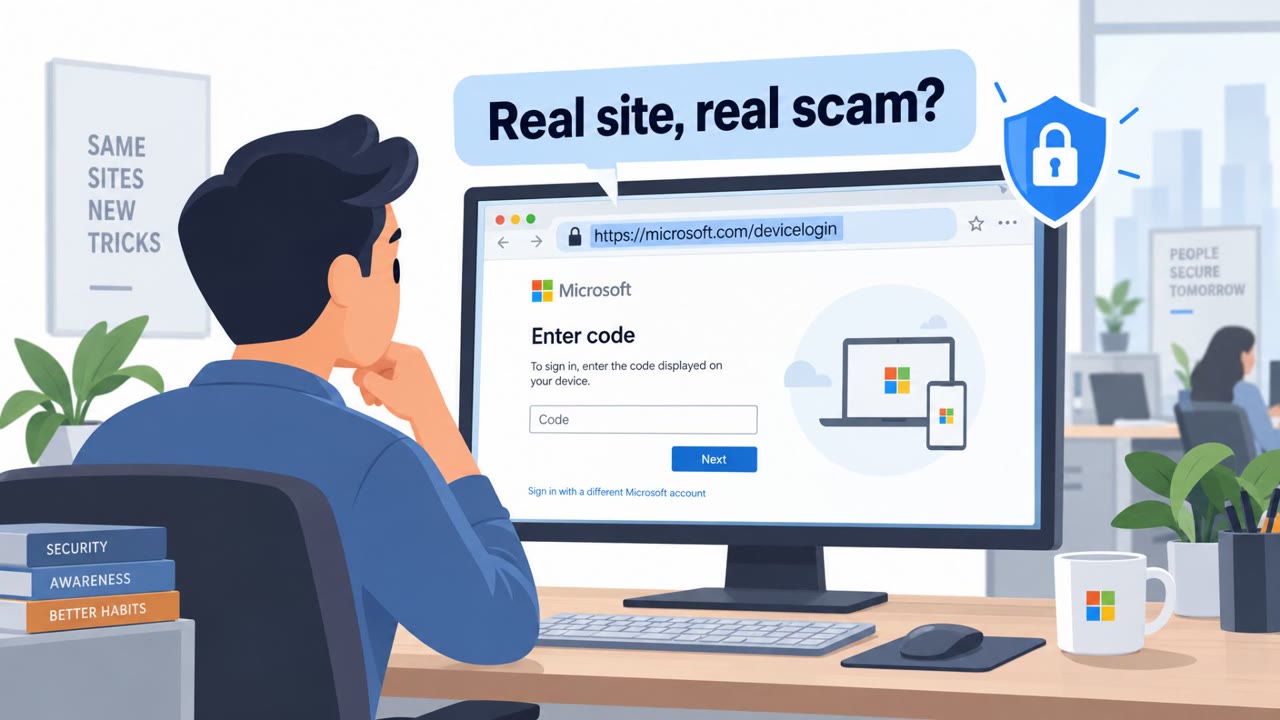
The attack succeeded largely because it did not rely on a fake login page. Since the sign-in step happened on Microsoft's own domain, one of the most commonly taught phishing red flags, a suspicious URL, simply did not apply. The urgency built into the pretext (overdue tasks, HR payroll and benefits updates) pushed recipients to act quickly rather than pause and scrutinize the request. The final step, an OAuth consent prompt, is also unfamiliar territory for many employees who have been trained to watch for fake passwords fields but not for permission grants.
What to watch for
- Emails referencing overdue tasks or payroll/benefits updates with pressure to act immediately
- Multiple buttons or links in the same email that all lead to the same redirect destination
- A visible sender address that appears to belong to the recipient's own organization
- An unexpected Microsoft permissions or consent prompt appearing after a normal-looking sign-in
These signs, especially the consent prompt, are often the last opportunity to stop the attack before an attacker-controlled application gains standing access.
Building resistance
Organizations can reduce risk from this style of attack by training staff to treat any unexpected Microsoft permissions or consent prompt as high risk, and to decline approval unless they personally initiated the request and recognize the requesting app. Employees should also be reminded that a legitimate-looking login URL is not proof an email is safe, since attackers can abuse real Microsoft sign-in flows. Finally, staff should understand that approving broad permissions can expose far more than one document: it can expand to email, files, Teams chats, SharePoint, OneDrive, and calendar data across the Microsoft 365 environment. IT and Microsoft 365 administrators should also review and restrict which third-party applications employees are allowed to consent to.
Key findings
- Over 200 phishing emails targeted about 120 organizations across industries and countries during late June through early/mid July.
- Emails impersonated Microsoft Planner task notifications and referenced HR payroll/benefits updates plus overdue tasks to create urgency.
- Clicking led victims to a legitimate Microsoft OAuth page (login.microsoftonline.com), reducing typical phishing warning signs.
- After sign-in, victims were prompted to approve OAuth permissions; approval redirected to attacker infrastructure (an AWS API Gateway endpoint).
- Attackers could obtain an authorization token and potentially access Microsoft 365 data (email, files, Teams, SharePoint, OneDrive, calendars) depending on permissions granted.
Who’s being targeted
- Commonly targeted roles: All employees, HR, Finance/Payroll, Executives, Microsoft 365 administrators / IT.
- Affected industries: Multiple industries (varied).
- Attack channels: email, website.
- Impersonated: Microsoft Planner / internal HR notification.
Red flags to watch for
- Multiple buttons/links in the email lead to the same redirect URL
- Email appears to come from the recipient/their own organization
- Unexpected Microsoft permissions (OAuth) request asking to approve access
Frequently asked questions
How did this phishing attack avoid raising suspicion?
Victims who clicked the phishing email link were sent to a genuine login.microsoftonline.com OAuth authorization page, so the URL itself did not look suspicious even though the campaign was malicious.
What happens after a victim signs in?
After signing in, the user is shown a permissions request asking them to approve access for themselves or their organization. Approving it redirects the browser to attacker infrastructure and can hand over an authorization token.
What data could attackers access if permissions were approved?
Depending on what was approved, an attacker-controlled app could reach into the victim's Microsoft 365 environment, including email, files, Teams chats, SharePoint, OneDrive, and calendar data.
How many organizations were targeted?
Over 200 phishing emails targeted about 120 organizations across industries and countries during late June through early or mid July.
Read the video transcript
You get an email: “Microsoft Planner, New task assignment, HR payroll and benefits updates, overdue tasks.” Looks totally normal, right? You click any button, every link goes to the same place, and you land on a real Microsoft page: login.microsoftonline.com. No fake URL, no obvious scam. That’s the trick. After you sign in, a permissions box pops up asking you to approve access for an app. That’s the real attack: one click on that OAuth consent can hand over your email, OneDrive, Teams chats, SharePoint, and calendar. Here’s the move: if you weren’t expecting that Microsoft permissions prompt, stop. Do not click Accept. Close it and report the email to security.