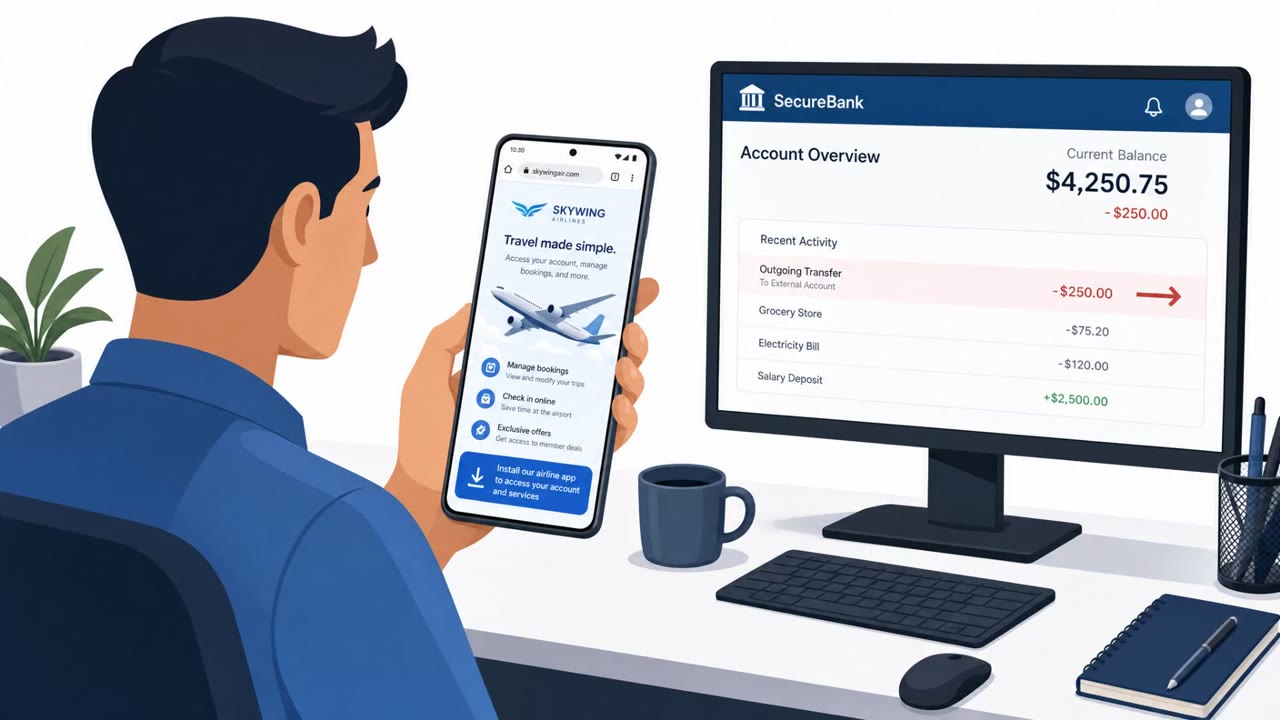
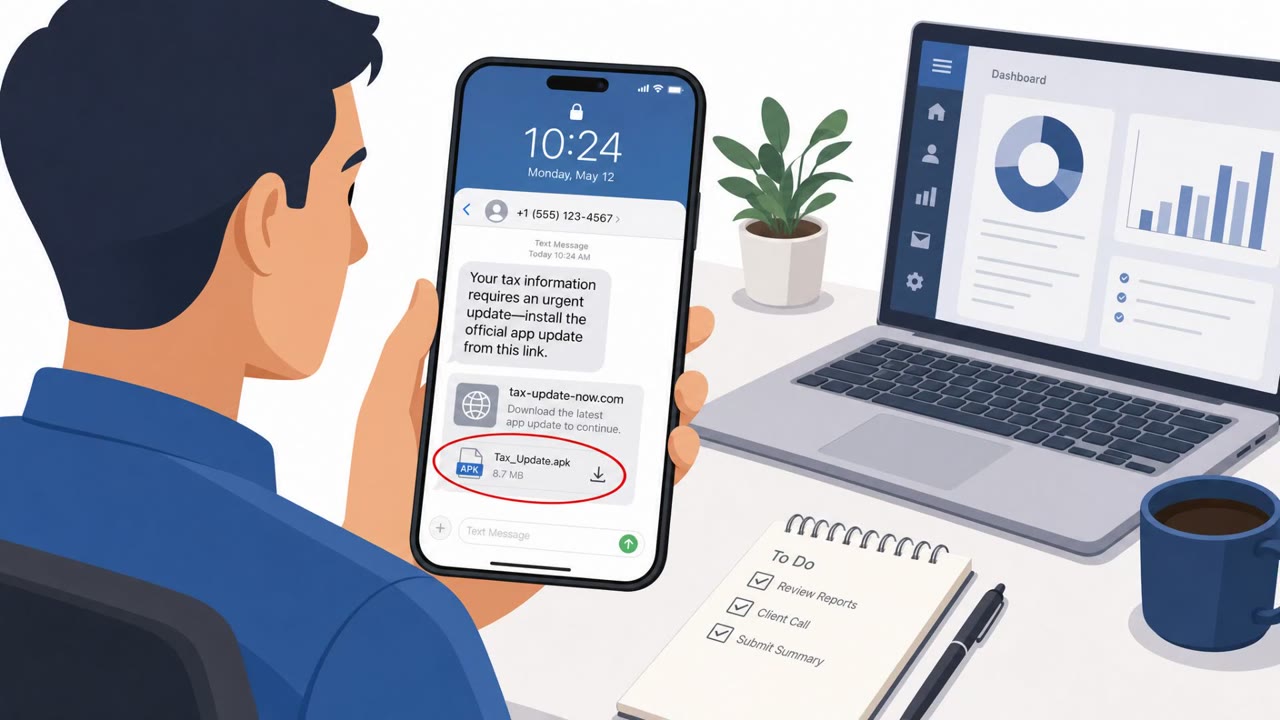
Researchers say the Gigabud banking trojan is being installed via fake apps (e.g., pretending to be an airline, tax office, or government portal) and then uses an Android “work profile” to hide a tampered banking app. Victims are tricked into granting powerful permissions, after which attackers can overlay fake login screens to steal credentials and run fraudulent transactions while masking what’s happening on the screen. Group-IB confirmed the full infection chain on devices in Indonesia and estimates nearly $1M in observed losses.
Key findings
- Gigabud installs a second app (“Vwork”) that creates an Android work profile and places a tampered banking app inside it to evade some banking app malware checks.
- Gigabud spreads via “a fake app posing as a national airline, a tax office, or a government portal, installed from outside the official store.”
- On first launch, the malware asks for high-risk permissions, especially Accessibility, which enables attacker control of the device.
- When a victim opens their real banking app, the trojan can display a fake login overlay to steal keystrokes and capture the device lock code via an invisible overlay.
- Attackers can perform transactions through Accessibility while “a black screen covers what is happening.”
- Group-IB confirmed the full chain on infected devices in Indonesia and observed 1,469 compromised devices with estimated losses of about $960,000 (Feb–Jul 2026).
Who’s being targeted
- Commonly targeted roles: All employees (mobile users), Finance/Payments teams, Executives (high-value banking targets), Helpdesk/IT support (mobile security hygiene).
- Affected industries: Banking/Financial Services, Consumers/Mobile banking users.
- Attack channels: website.
- Impersonated: A national airline, tax office, or government portal (impersonation via fake app), The fake app’s ‘setup’ / ‘security requirements’ screens (app-level pretext), A legitimate bank app (tampered/fake version placed in a work profile).
Awareness takeaways
- Only install mobile apps from official app stores; treat ‘download this app from a link’ as a high-risk request.
- Never grant Accessibility access (or ‘draw over other apps’) to apps that don’t clearly need it, this can give attackers control of the device.
- Watch for unexpected Android work profiles or briefcase-badged apps on a personal phone; they can indicate a hidden container used for fraud.
- Use a banking second factor that does not rely on SMS to reduce account takeover risk.
Red flags to watch for
- App is installed from outside the official app store
- App requests powerful permissions that don’t match its purpose (especially Accessibility)
- Branding/pretext implies urgency or required access to proceed
- Accessibility requested by a non-accessibility app
- Requests to ‘draw over other apps’ without a clear need
- Permission prompts framed as required to proceed
- Unexpected ‘work profile’ appears on a personal phone
- Banking app appears duplicated across personal and work profiles
- Briefcase badge on icons you didn’t set up
Read the video transcript
You get a link: “Install our official airline app update to continue your booking.” Looks legit… but it’s not from Google Play. Behind that fake airline, the Gigabud trojan quietly installs a second app called “Vwork,” creates an Android work profile, and hides a tampered banking app inside it. On first launch it demands Accessibility and ‘draw over other apps.’ Give it that, and when you open your real banking app, Gigabud drops a fake login screen on top, steals your password and lock code, then runs transactions behind a blacked-out screen. Your move: if an app from a link, not the app store, asks for Accessibility or to draw over other apps, stop right there and uninstall it. Don’t tap Allow.