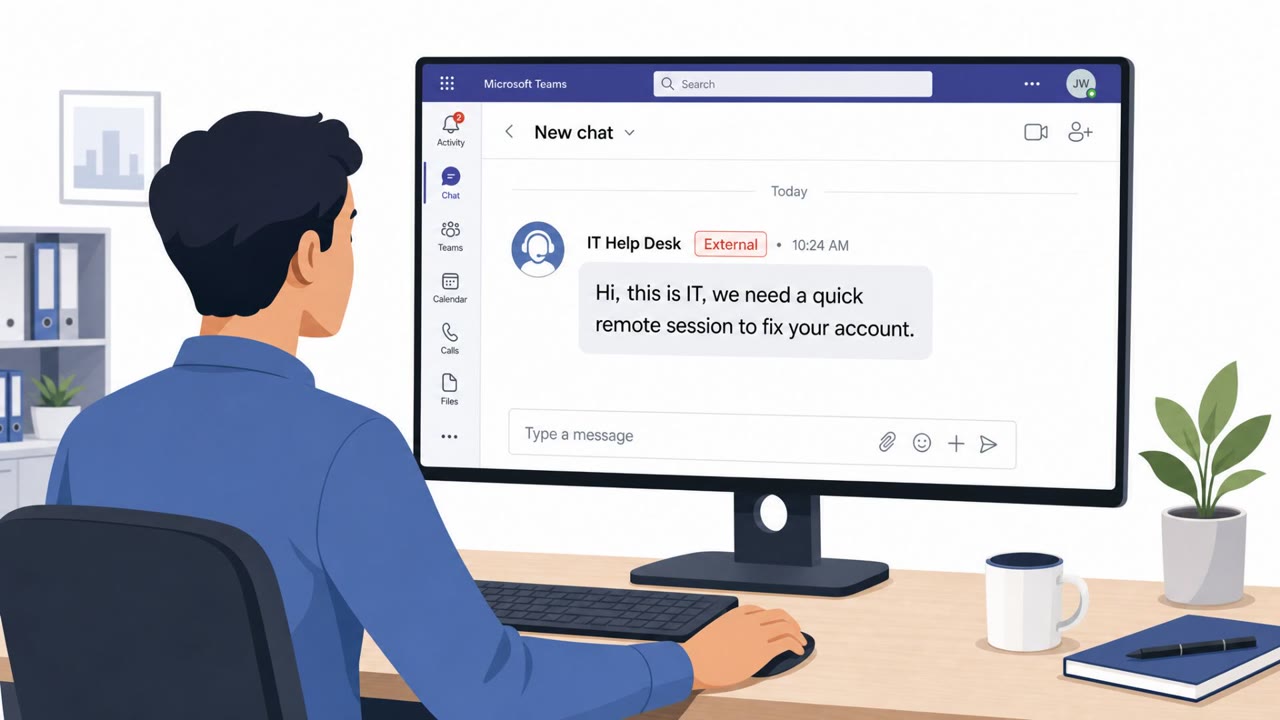
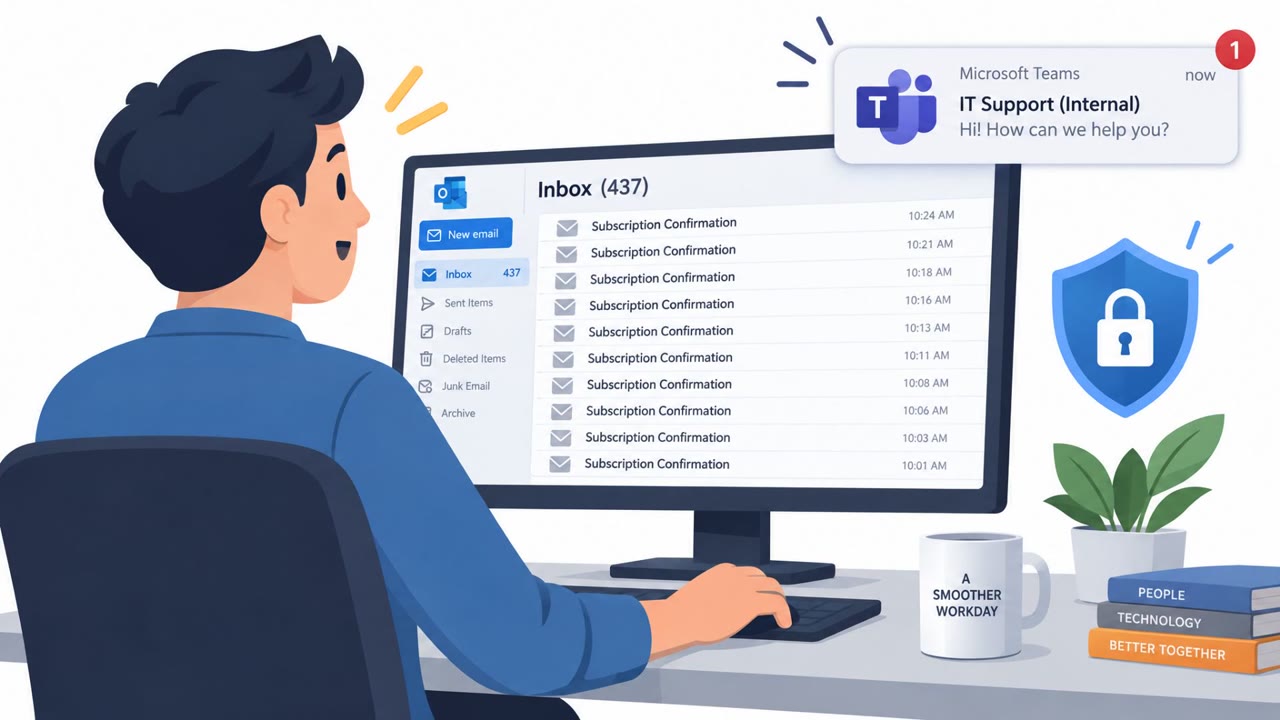
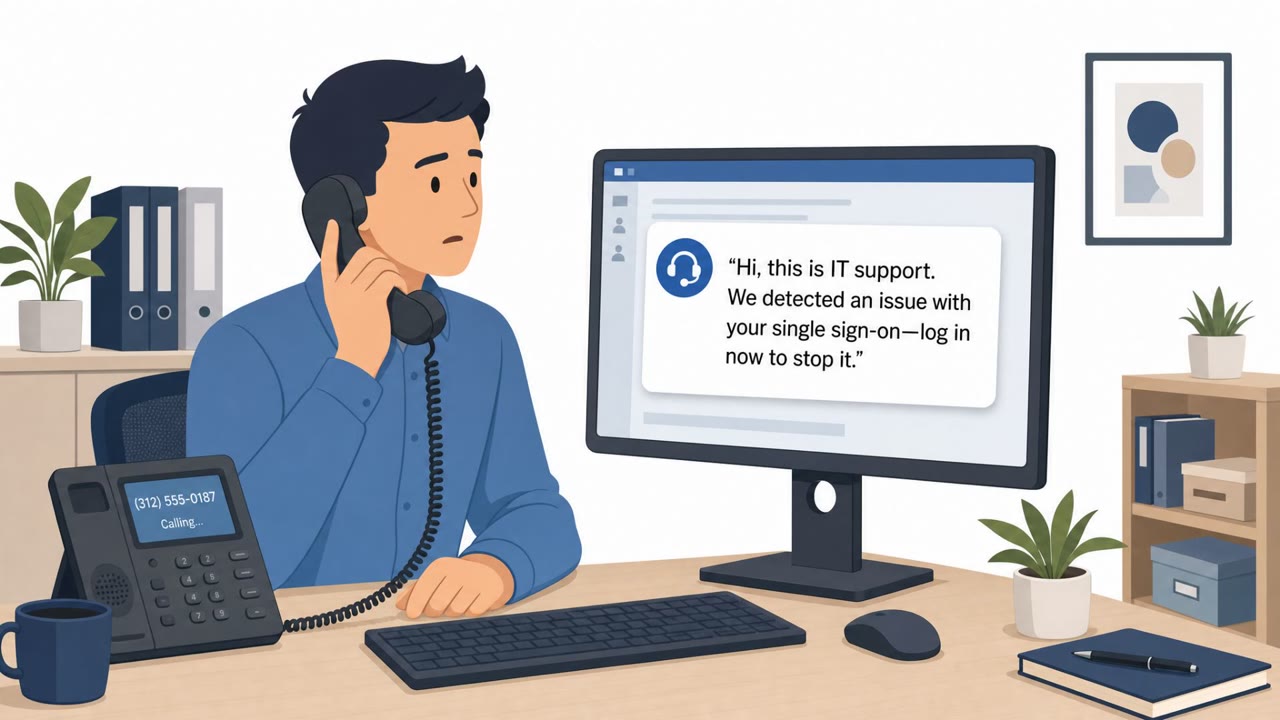
Attackers impersonated IT help desk staff through phone calls, email, and Microsoft Teams, using employees’ names and email addresses to appear legitimate. They persuaded users to open remote-access sessions, and one such session led to a ransomware incident. The campaigns did not focus only on executives or technical staff; attackers appeared to be looking for any employee willing to cooperate.
Key findings
- Attackers impersonated company IT help desk personnel through phone, email, and Microsoft Teams.
- The actors used employee names and email addresses but showed no evidence of deep victim-specific research.
- Victims were guided into Microsoft Teams and remote-access sessions, including Microsoft Quick Assist.
- In one incident, a voice-phishing call convinced a user to start a Quick Assist session that ultimately led to VYPR ransomware activity.
- One victim called a fraudulent IT support number displayed in a generic browser pop-up and then granted the attacker remote access.
- The campaigns targeted a broad range of employees rather than concentrating on executives, administrators, or technical personnel.
- Cisco Talos recommended phishing-resistant MFA, stricter help desk verification for MFA enrollment, and centralized log retention.
Who’s being targeted
- Commonly targeted roles: All employees, Help desk and IT support staff, Security operations teams, Identity and access management teams, Executives and administrators.
- Affected industries: Multiple industries and organizations.
- Attack channels: email, teams, website, vishing.
- Impersonated: Legitimate company IT help desk personnel, IT support.
Awareness takeaways
- Treat unsolicited IT support contacts as suspicious, even when the sender or caller knows your name and company email address. Verify the request through the organization’s official help desk channel before responding.
- Never call a support number presented in a browser pop-up. Close the pop-up and use the support number or portal provided by your organization.
- Do not start Quick Assist or any other remote-access session for an unverified caller. Contact IT through a known internal channel to confirm that support is needed.
- Apply support verification controls to every employee, not only executives and administrators, because attackers may seek any person willing to provide initial access.
Red flags to watch for
- The contact is unsolicited, even though it uses the employee's real name.
- The requester asks the employee to start or permit remote access.
- The help desk identity is not independently verified through a known internal support channel.
- A browser pop-up unexpectedly tells the employee to call support.
- The support number was not obtained from the organization's approved support portal or directory.
- The caller asks for remote access after the employee initiates contact through a pop-up.
- The caller is unsolicited and cannot be verified through a known help desk number.
- The caller asks the employee to open a remote-control tool.
- Quick Assist is started in response to a phone request rather than a verified internal support ticket.
Read the video transcript
“Hi, this is IT. We need to fix your device.” Sound familiar? The caller knows your name, moves you into Teams, then asks you to open Microsoft Quick Assist. One such session led to VYPR ransomware. Here’s the catch: knowing your name doesn’t make them IT. Another employee called a support number from a browser pop-up, then granted remote access. Before any remote-access session, contact IT yourself through your company’s approved support portal.