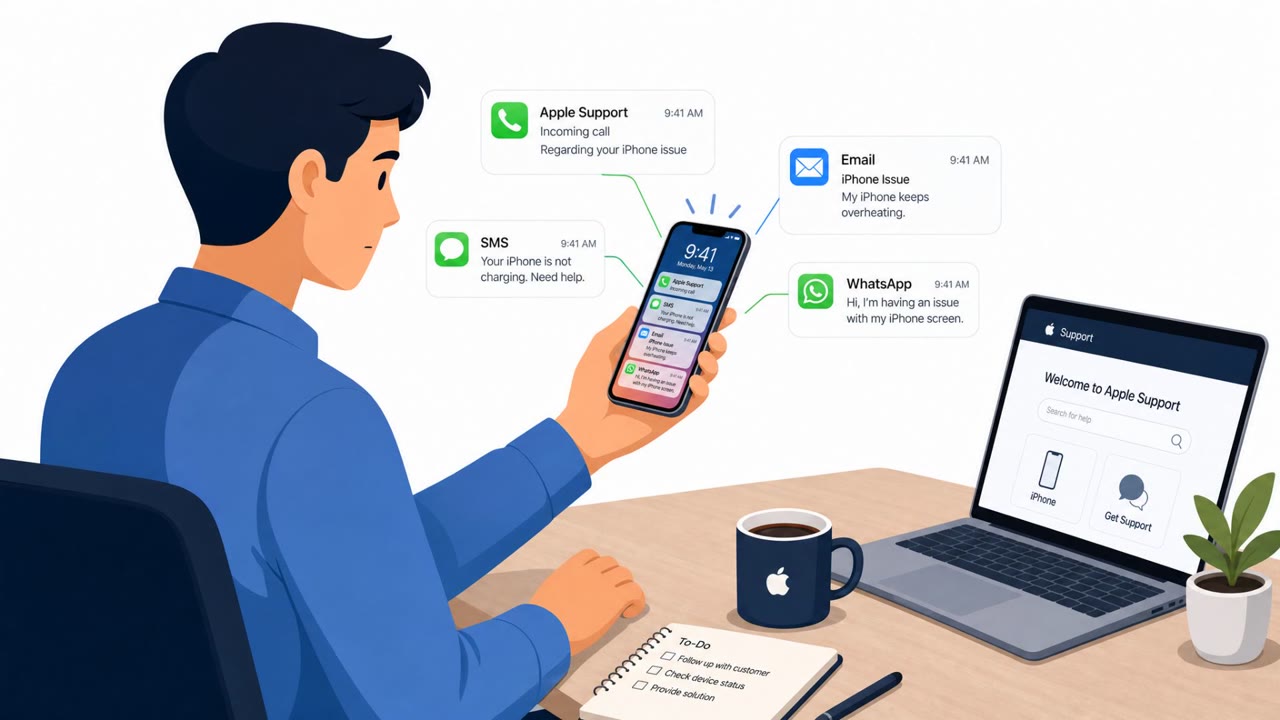
Microsoft reports active intrusions where attackers trick employees with “passkey/SSO update” helpdesk pretexts delivered by phone, SMS, or even Microsoft Teams. Victims are sent to lookalike Microsoft sign-in pages or guided through device-code sign-in, letting attackers capture session access and then add their own MFA method for persistence. After that, the attackers use Microsoft Graph to enumerate and collect email and files from SharePoint and OneDrive.
How the Attack Worked
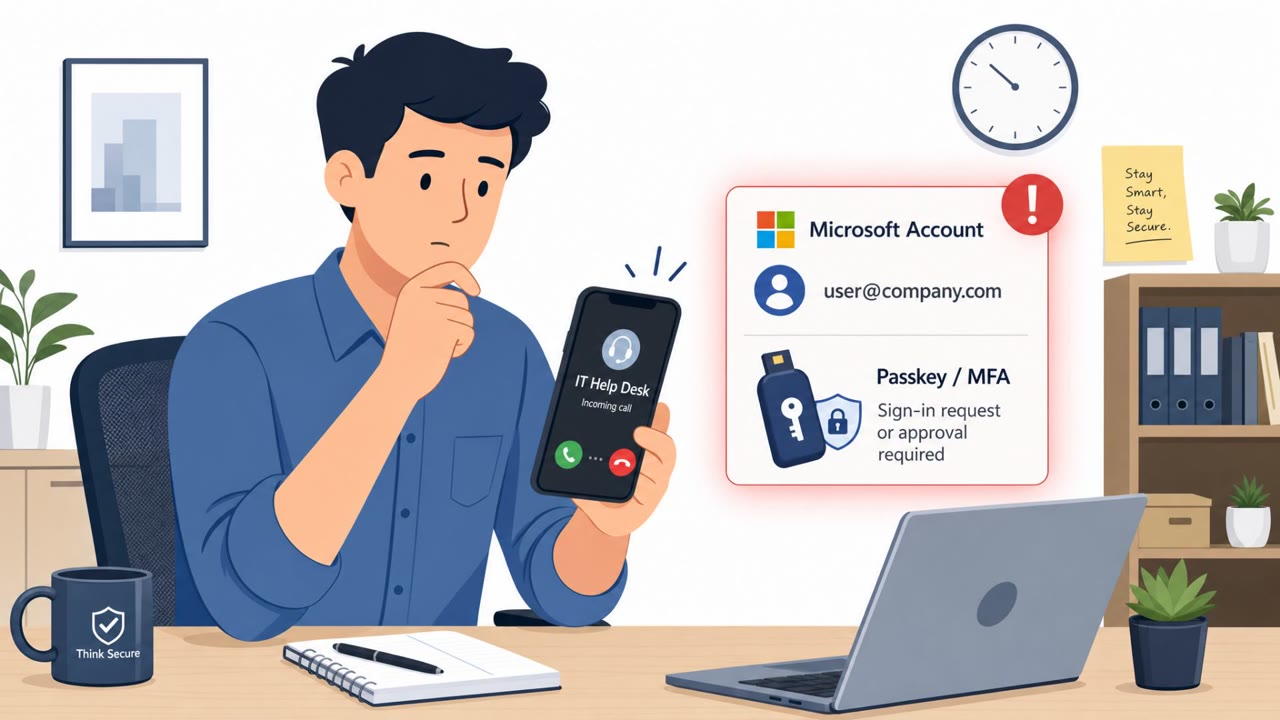
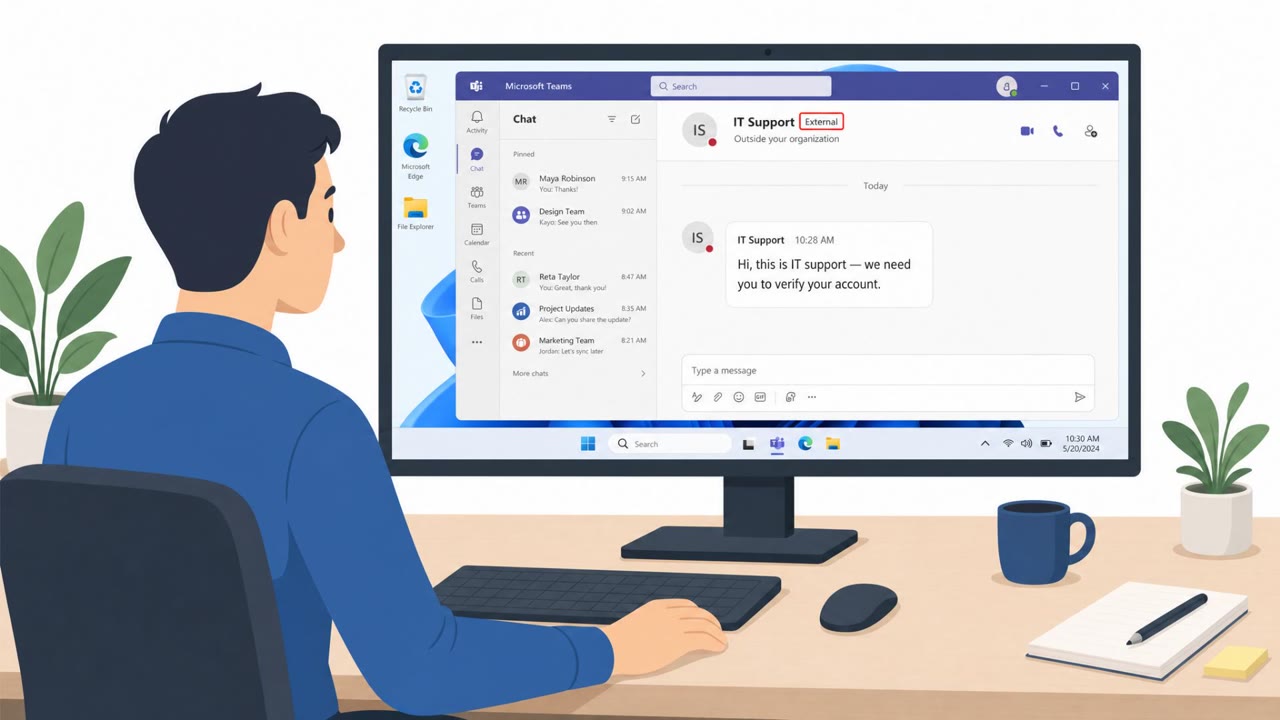
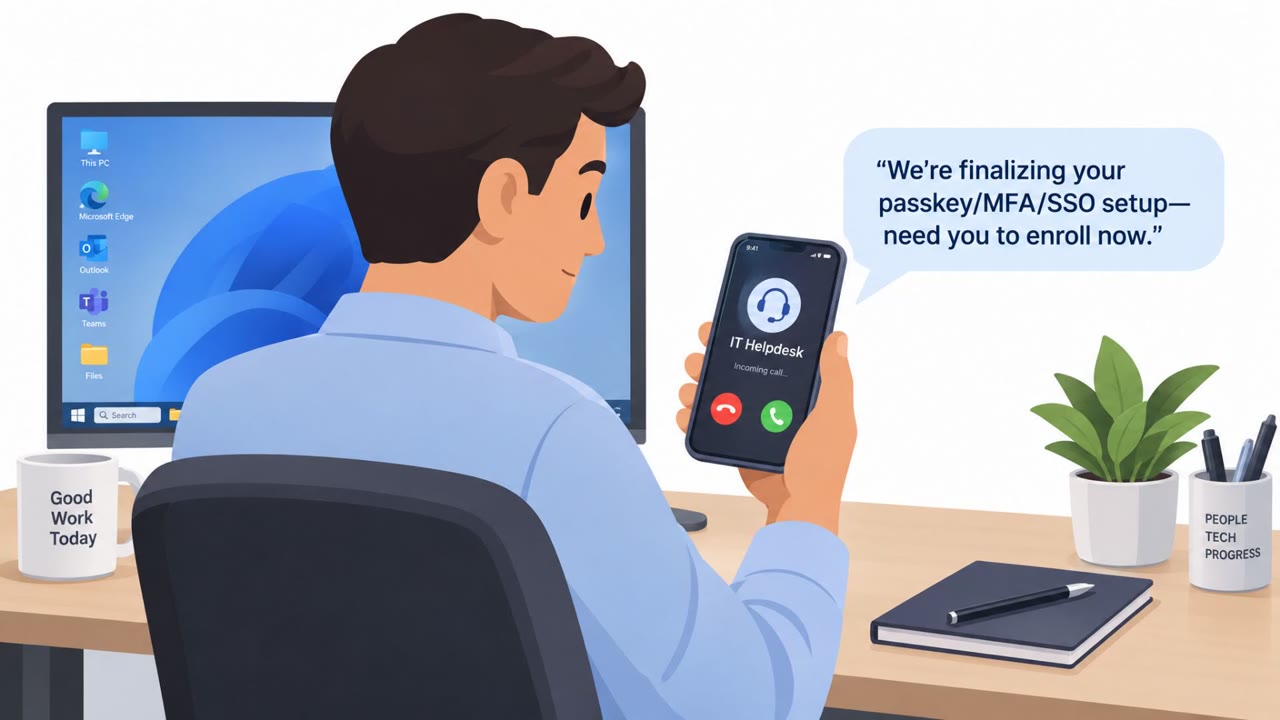
This intrusion pattern starts with a helpdesk impersonation call or text sent to an employee's personal phone number, not a work line. The caller claims a passkey, MFA, or SSO configuration must be updated immediately to avoid disruption, creating urgency that discourages the victim from pausing to verify. Employees are then directed to a website that closely resembles a legitimate Microsoft sign-in experience, or they are talked through a device-code authentication flow. In device-code phishing, the victim enters a code on the real Microsoft authentication page, and that approval issues a token to an attacker-controlled client. In a smaller number of cases, attackers use already compromised employee accounts to send the same passkey-themed lure through Microsoft Teams, which increases trust because the message appears to come from a coworker.
Why It Succeeded
The pretext works because it borrows language employees already associate with legitimate security hygiene: passkeys, MFA, and SSO updates. Combining that with urgency and a call to a personal phone bypasses normal IT communication channels where a scam might otherwise be caught. The lookalike sign-in domains, sometimes structured as a generic domain with the target company's name embedded as a subdomain, add a visual layer of legitimacy that a quick glance will not catch.
What to Watch For
- Unexpected urgency about passkey, MFA, or SSO updates arriving by call, text, or Teams message
- Links sent to a personal phone rather than through an approved IT portal
- Requests to enter a device code or approve a sign-in you did not initiate
- Company-name subdomains on unfamiliar root domains
Building Resistance
Employees should verify any helpdesk contact through a known internal number before acting on urgent authentication requests, and never approve a device code or sign-in prompt they did not start themselves. After any suspected phishing, IAM and cloud admin teams should review accounts for newly added authentication methods, since attackers in this pattern register their own phone number, authenticator app, or OTP token to persist access, and revoke sessions for confirmed compromises.
Key findings
- Attackers start with helpdesk impersonation on employees’ personal phone numbers, using urgent “passkey/MFA/SSO update” messaging.
- Victims are directed to a lookalike Microsoft sign-in site or pushed through device-code authentication so the attacker gains a session/token.
- In some cases, attackers use compromised employee accounts to send similar lures via Microsoft Teams, increasing trust.
- After access, attackers add an attacker-controlled authentication method (phone number/authenticator/software OTP) to maintain persistence.
- The intrusions then show high-volume Microsoft Graph activity and data collection from SharePoint, OneDrive, and email via REST APIs.
Who’s being targeted
- Commonly targeted roles: All employees, IT helpdesk / service desk, Identity & access management (IAM) team, Microsoft 365 / cloud administrators, Executives and admins with access to sensitive SharePoint/OneDrive data.
- Affected industries: Multiple industries using Microsoft 365 (cross-industry cloud identity attacks).
- Attack channels: vishing, smishing, website, teams.
- Impersonated: Organization IT helpdesk, IT helpdesk / identity support, Trusted employee identity (compromised internal account).
Red flags to watch for
- Urgent pressure to act “immediately to avoid disruption”
- Link sent to a personal phone and not through normal IT channels
- Website only “resembles a legitimate Microsoft sign-in experience” (lookalike login)
- Being asked to enter a code to approve access you didn’t initiate
- The “passkey” story doesn’t match a normal company process
- Unrecognized sign-in approvals happening during the interaction
- Unexpected authentication setup request sent via Teams
- Message pushes you to use a link rather than standard IT portal
- Sender account behavior is unusual or out-of-character
Frequently asked questions
How does the passkey helpdesk scam start?
It begins with a call or message on an employee's personal phone from someone claiming to be IT helpdesk, warning that a passkey, MFA, or SSO setting must be updated immediately to avoid disruption.
What happens if a victim clicks the link?
Victims are sent to a website that closely resembles a legitimate Microsoft sign-in page or are guided through device-code authentication, which lets the attacker capture a valid session or token.
Why do attackers use Microsoft Teams in this attack?
In some cases attackers use already compromised accounts to send the same passkey-themed messages through Teams, making the request appear legitimate and increasing the likelihood employees will engage.
How do attackers maintain access after the initial compromise?
Instead of relying only on stolen credentials, attackers enroll their own MFA method, such as a new phone number, authenticator app, or software OTP token, so they retain access even if the password is later reset.
Read the video transcript
You get a call or text on your personal phone: “IT helpdesk here, we need to update your Microsoft passkey right now or your access breaks.” They text you a link that looks like Microsoft, or even send it over Microsoft Teams from a coworker’s compromised account. You land on a sign-in page that resembles Microsoft 365, or they walk you through entering a device code on the real Microsoft site. Here’s the trap: that passkey story is just a pretext. When you sign in or enter that device code, you’re approving a session for them. They add their own phone or authenticator as MFA, then quietly pull mail, SharePoint, and OneDrive data through Microsoft Graph. If anyone asks you to update passkeys or enter a device code you didn’t start, hang up, ignore the link, and call our real helpdesk using the number on the intranet.