Microsoft observed real phishing campaigns that tricked employees into downloading a legitimate MSP360 remote-management installer disguised as meeting invites, PDFs, and software updates. After the victim ran it (and approved an admin prompt), attackers gained persistent remote access and then installed ConnectWise ScreenConnect as a backup remote-control channel for follow-on theft and data collection.
How the Attack Worked
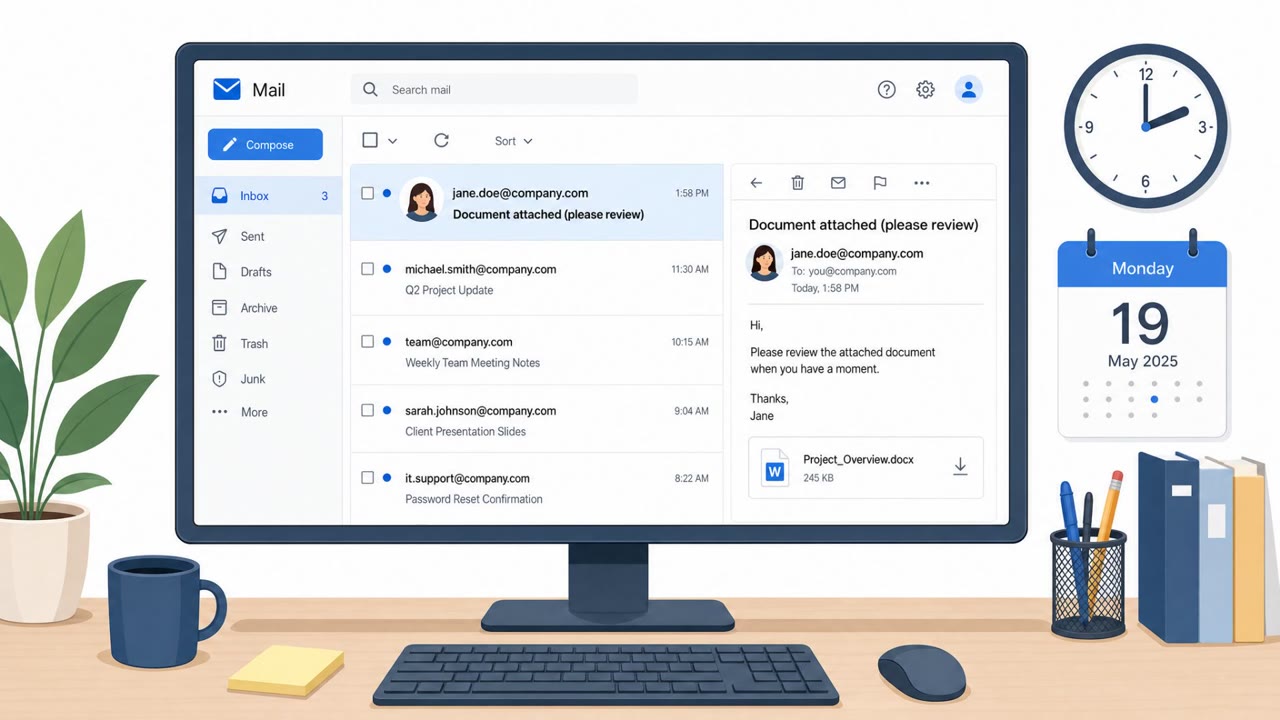
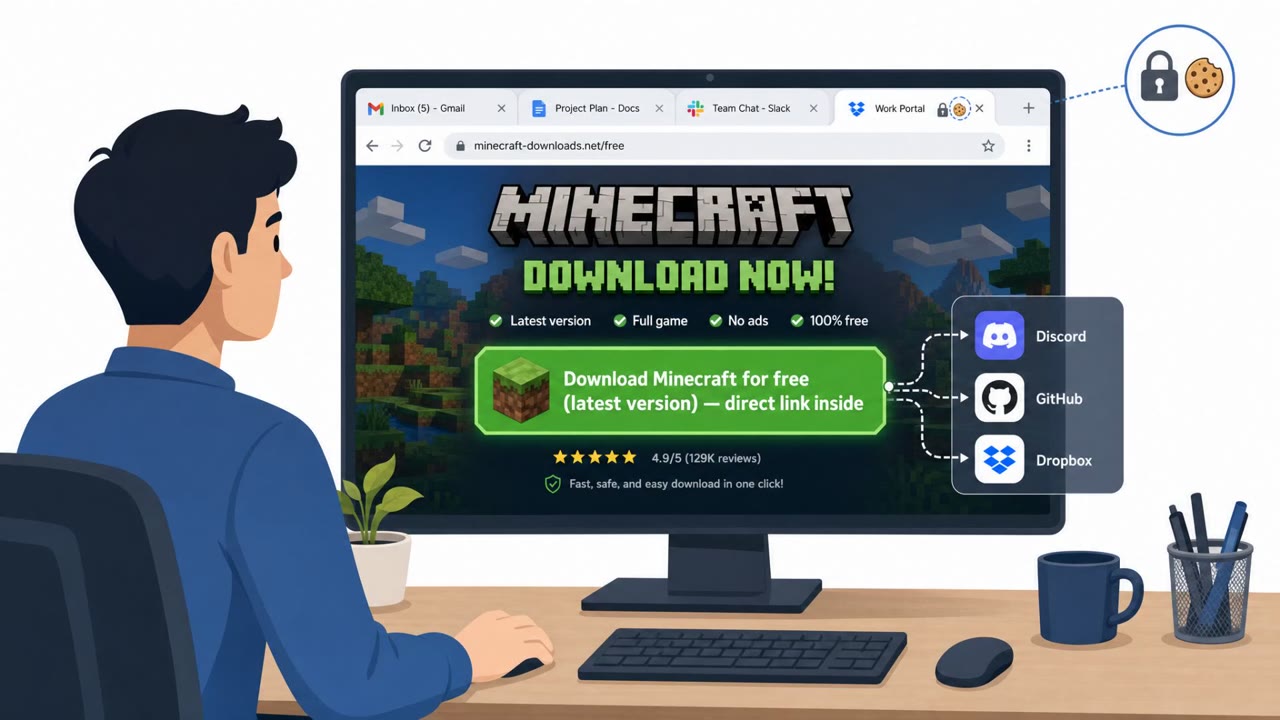
Microsoft observed phishing campaigns that delivered a legitimate, digitally signed MSP360 remote monitoring and management (RMM) installer under deceptive filenames designed to look like meeting invitations, PDF documents, or software update prompts. Victims were directed to actor-controlled landing pages that impersonated document-sharing portals, Adobe Reader download pages, Zoom installation pages, and business collaboration platforms. Other lures used DHL and package-delivery themes, or government statement themes, redirecting victims to download locations hosted on both attacker infrastructure and legitimate cloud services including Amazon S3, Cloudflare R2, Dropbox, GitLab, and Supabase.
Once a victim ran the installer and approved a Windows User Account Control (UAC) prompt, MSP360 services were established for persistent remote administration access. Attackers then used that access to download and silently install ConnectWise ScreenConnect, creating a redundant remote access channel. Post-compromise activity included credential-access operations and information collection, with additional executables staged under Windows or security-sounding names to avoid drawing attention.
Why It Succeeded
The campaign relied on legitimate, signed software rather than custom malware, which helped it blend into normal IT activity. Filenames were crafted to resemble everyday business content such as invitations, PDFs, and installers, exploiting the routine trust employees place in documents and update prompts. Rotating delivery infrastructure, including reputable cloud storage providers, let the actor keep distributing the same MSP360 installer under different lure themes without relying on a single suspicious domain.
What to Watch For
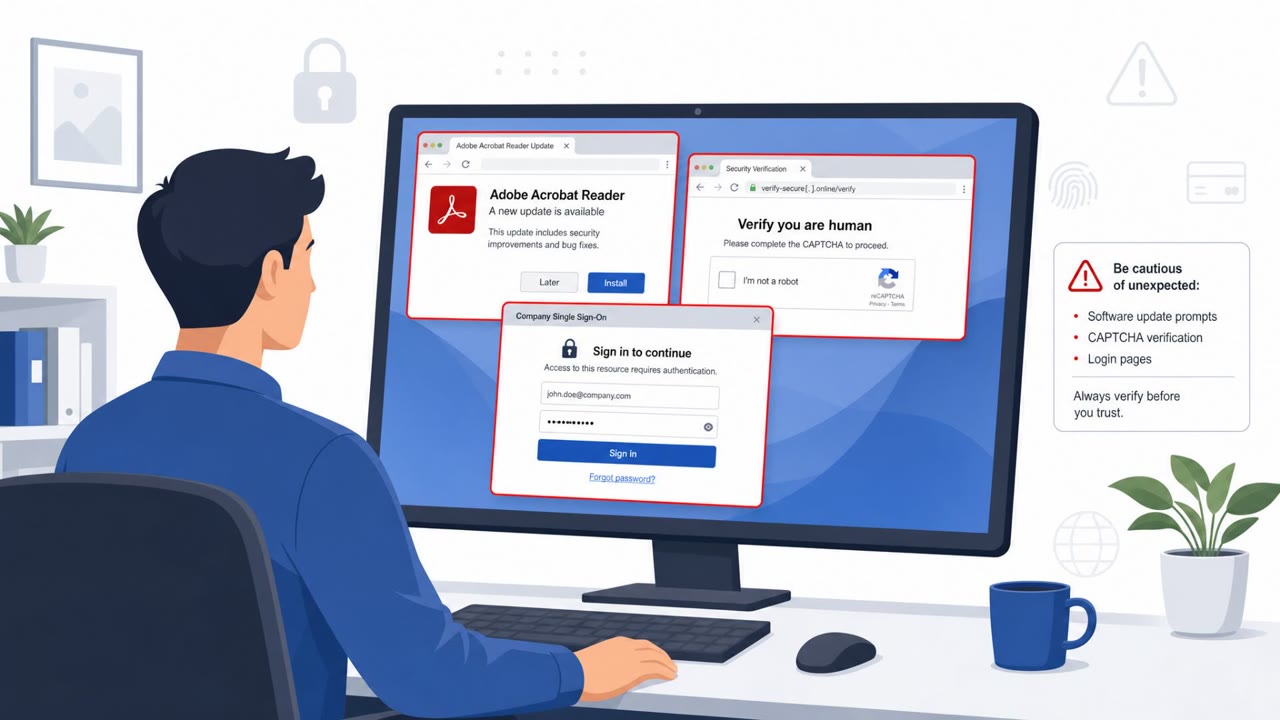
- Unexpected prompts to install software just to view a document or meeting invite
- Executable files with invitation, PDF, or statement-style names rather than proper document formats
- Lookalike portals for Adobe, Zoom, or document-sharing services reached via email links
- Unfamiliar redirect chains ending on cloud storage download pages instead of normal login portals
- Any Windows UAC elevation prompt appearing after opening an email attachment or link
How to Build Resistance
Organizations can reduce exposure to this pattern of attack by combining user training with technical controls:
- Train staff that real meeting invites, PDFs, and shipping notices should never require running an executable file
- Instruct employees to treat unexpected UAC elevation prompts, especially after opening a document or invite, as a signal to stop and contact IT or security
- Direct users to verify software update prompts through your organization's approved software portal rather than clicking links in email
- Apply Application Control for Windows to block unapproved IT management and remote administration tools
- Treat any unrecognized RMM installation as a likely compromise and escalate for investigation
This incident illustrates that threat actors continue to abuse legitimate remote administration software to blend into normal IT operations while maintaining persistent access, without needing to exploit a software vulnerability.
Key findings
- Phishing emails led users to actor-controlled landing pages that mimicked common business/work tools (document portals, invitations, Adobe/Zoom pages).
- Victims downloaded a legitimate, digitally signed MSP360 RMM installer, but under deceptive filenames to appear like meeting invites, PDFs, or installers.
- Once executed and elevated via UAC, MSP360 was installed for persistent remote administration access.
- Attackers then used MSP360 to download and silently install ConnectWise ScreenConnect, giving them a redundant remote access channel.
- Post-compromise activity included credential-access operations and information collection, and attackers staged additional executables with Windows/security-sounding names to reduce suspicion.
- Microsoft did not see a ScreenConnect software vulnerability exploited; the abuse was of legitimate admin tools.
Who’s being targeted
- Commonly targeted roles: All employees, HR/Recruiting, Finance, Operations, IT Helpdesk / IT Operations, Security Operations.
- Affected industries: Multiple industries.
- Attack channels: email, website.
- Impersonated: Document-sharing portal or software vendor download page (e.g., Adobe Reader / Zoom / collaboration platform), Delivery/statement sender (e.g., DHL theme; SSA statement theme).
Red flags to watch for
- Unexpected prompt to install software to view a document/meeting invite
- Download is an .exe with a document/invitation-style name
- Website is a lookalike portal (document-sharing / invitation / Adobe/Zoom install page)
- Government/shipping 'statement' arrives unexpectedly and requires running an .exe
- Filename contains unusual strings like 'rmm' and version numbers
- Redirect chain ends at a download location (including cloud storage) rather than a normal portal login
Frequently asked questions
How did the phishing attack deliver malware without triggering antivirus alerts?
Attackers used a legitimate, digitally signed MSP360 RMM installer renamed to look like meeting invitations, PDFs, or software updates, so the file itself passed as trusted software rather than obvious malware.
What happened after the MSP360 installer ran?
Once executed and approved via a Windows UAC prompt, MSP360 established persistent remote access, which attackers then used to silently install ConnectWise ScreenConnect as a backup remote control channel.
Was a vulnerability in ScreenConnect or MSP360 exploited?
No. Microsoft found no software vulnerability was exploited; the incident involved abuse of legitimate remote administration tools rather than an exploit.
What can organizations do to prevent this kind of attack?
Train staff that meeting invites, PDFs, and shipping notices should never require running an .exe, treat unexpected UAC prompts as a reason to contact IT, and use application control policies to block unapproved remote management tools.
Read the video transcript
You get a Zoom invite email, click the link, and it says: “Download ZoomSetup_Installation_v2.5.0.67.exe” to join. Here’s the trick: that file is a real MSP360 remote-management installer, renamed to look like a Zoom setup, PDF reader, even VIP_ECARD_INVITATION_rmm_v2.5.0.67.exe. You run it, click Yes on the Windows admin prompt, and now they have MSP360 on your machine. From there they quietly drop ConnectWise ScreenConnect, then start grabbing credentials and data like a legit IT tool. Aha moment: real invites, PDFs, and shipping notices never need an .exe. If a ‘document’ download triggers a Windows admin prompt, stop and call IT, do not click Yes.