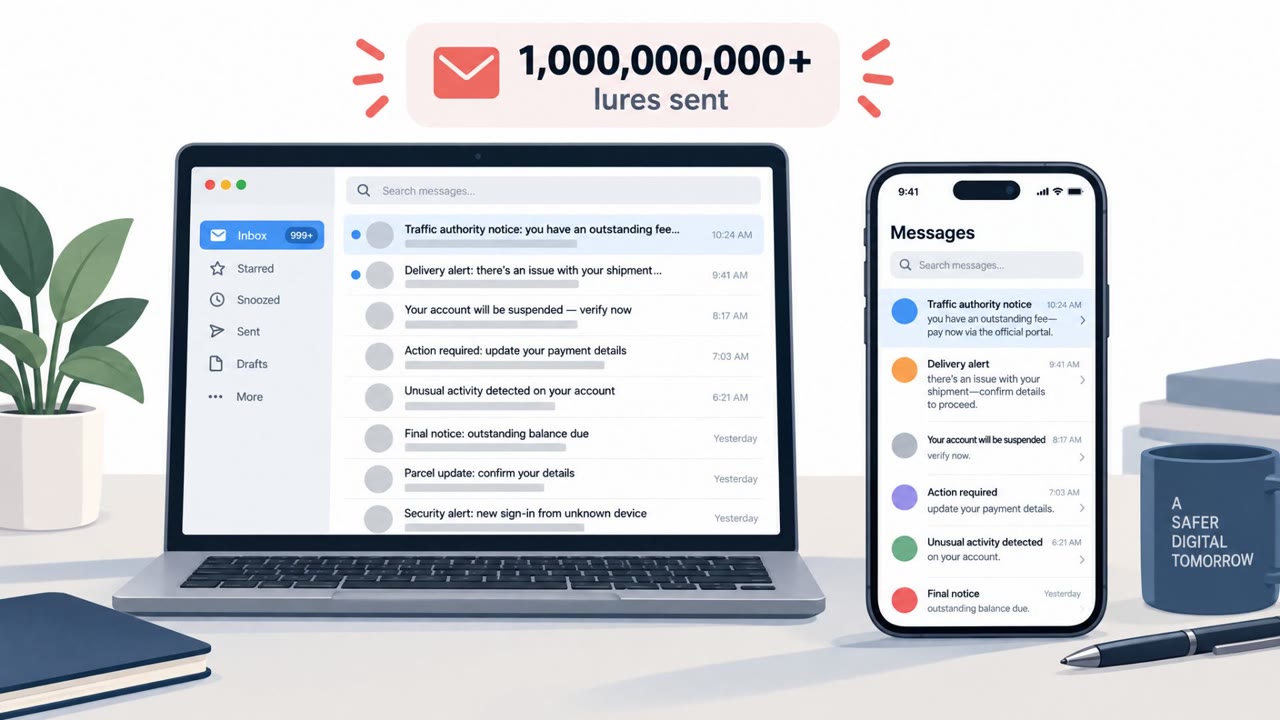
Researchers reported an active, large-scale phishing campaign that starts with links hosted on legitimate Google services, then redirects victims to attacker-controlled sites. The final pages mimic Microsoft sign-in or “identity verification” flows to steal credentials/MFA codes or trick targets into installing ScreenConnect remote-access software. The phishing pages can be personalized with the victim’s employer branding and pre-filled email address to look more convincing.
How the attack worked
Researchers at KnowBe4 Threat Lab identified an active, wide-scale phishing campaign that begins with links hosted on legitimate Google services. Victims click a link inside a message such as a document review or mailbox-expiration notice, and the link starts on a trusted Google service like Meet, Search, or DoubleClick before redirecting through a chain of pages. The final destination is an attacker-controlled site that mimics a Microsoft sign-in or identity verification flow. Depending on the variant, the end goal is either stealing Microsoft credentials and device authorization codes, or convincing the victim to install ScreenConnect, a legitimate remote administration tool, giving the attacker interactive access to the endpoint.
Why it succeeded
The use of legitimate Google services as the entry point is central to why this campaign works. A familiar Google address in a message may be exactly what makes a target trust the link enough to click. From there, redirect chains vary across campaign instances, which complicates efforts to block a single fixed path and helps the links survive early security checks. The attacker site also performs target filtering, using fake human-verification prompts and company-domain checks, to reduce the chance that automated scanners or researchers ever see the actual phishing page. Personalization adds another layer of credibility: some pages are tailored with the victim's employer logo and a pre-filled email address.
What to watch for
- Messages that send you through several pages or redirects before asking for a sign-in
- A final destination on an unfamiliar domain, even though the link started on a trusted Google service
- A sign-in page that is unusually personalized, such as showing a company logo or pre-filling your email
- An identity verification flow that asks you to install software, especially a remote access tool
- Verification steps that do not match your organization's normal login process
Building resistance
Organizations across manufacturing, government, finance, and nonprofit sectors have been targeted, and the campaign supports multiple languages, indicating broad, opportunistic targeting rather than a narrow focus. Employees, IT helpdesk staff, and security teams should be trained to navigate directly to a service instead of clicking through a message, even when the initial link looks legitimate. Any request to install software during a supposed identity verification step should be treated as a serious warning sign and reported immediately. If ScreenConnect or another remote access tool may have been installed, a password or MFA reset alone is not sufficient. The device itself should be treated as potentially compromised and investigated accordingly, since this campaign extends beyond simple credential theft toward direct endpoint access.
Key findings
- Active, wide-scale phishing campaign routes targets through legitimate Google services (e.g., Meet, Search, DoubleClick) before redirecting to malicious pages.
- Redirect chains vary, making it harder to block a single fixed URL path and helping links “survive early security checks.”
- Phishing becomes more personalized over the redirect chain; some pages are tailored to the victim’s employer and email address (including company logo and pre-filled email).
- Attacker site performs target filtering (fake human-verification prompts and company-domain checks) to avoid showing the phishing page to scanners or researchers.
- End goals include stealing Microsoft credentials/device authorization codes, or tricking users into installing ScreenConnect to gain interactive endpoint access.
- Campaign observed across multiple industries (manufacturing, government, finance, nonprofit) and supports 16 languages (global targeting).
Who’s being targeted
- Commonly targeted roles: All employees, Finance, HR, Executive assistants, IT helpdesk, Security team.
- Affected industries: Manufacturing, Government, Finance, Nonprofit.
- Attack channels: email, website.
- Impersonated: Microsoft sign-in (with employer branding), Identity verification / security check flow.
Red flags to watch for
- Message sends you through several pages/redirects before the sign-in prompt
- Final destination is an unfamiliar domain even though the link starts on a trusted Google service
- Login page is unusually personalized (company logo/website image) and may pre-fill your email unexpectedly
- A sign-in/verification flow asks you to install software
- Unexpected remote access tool installation request
- Polished verification steps that don’t match your normal company login process
Frequently asked questions
How does this phishing campaign use Google links?
It routes targets through legitimate Google services such as Meet, Search, and DoubleClick before redirecting them to attacker-controlled pages, which helps the links survive early security checks.
What is the end goal of the attack?
The campaign either steals Microsoft credentials and device authorization codes through a fake sign-in page, or tricks victims into installing ScreenConnect, a legitimate remote administration tool, to gain interactive access to the device.
How does the phishing page avoid detection by security researchers?
The attacker-controlled site performs target filtering using fake human-verification prompts and company-domain checks so scanners or researchers are less likely to see the malicious page.
What should security teams do if ScreenConnect was installed?
Security teams should not stop at a password reset. If remote-access software may have been installed, the device itself should be treated as potentially compromised and investigated accordingly.
Read the video transcript
You get an email: "Action required, please review the attached document" with a legit-looking Google link. Feels safe, right? But this campaign chains through Google Meet, Search, or DoubleClick, then quietly lands you on a fake Microsoft sign-in page dressed up with your company logo and your email already filled in. That’s the trap: multiple redirects to dodge filters, then either steal your Microsoft password and MFA code, or push a fake identity check that installs ScreenConnect for full remote access. If a link starts on Google but sends you through weird redirects to a Microsoft login or identity check, stop. Close it, then go to office.com or your usual app directly and sign in from there.