Microsoft reports a real campaign where attackers contact employees through Microsoft Teams while pretending to be IT/helpdesk and persuade them to grant remote control (for example via Teams “request control” or Quick Assist). Once they get an interactive session, the attacker silently installs malware and then explores Active Directory and moves across the network toward high-value systems like domain controllers.
How the attack worked
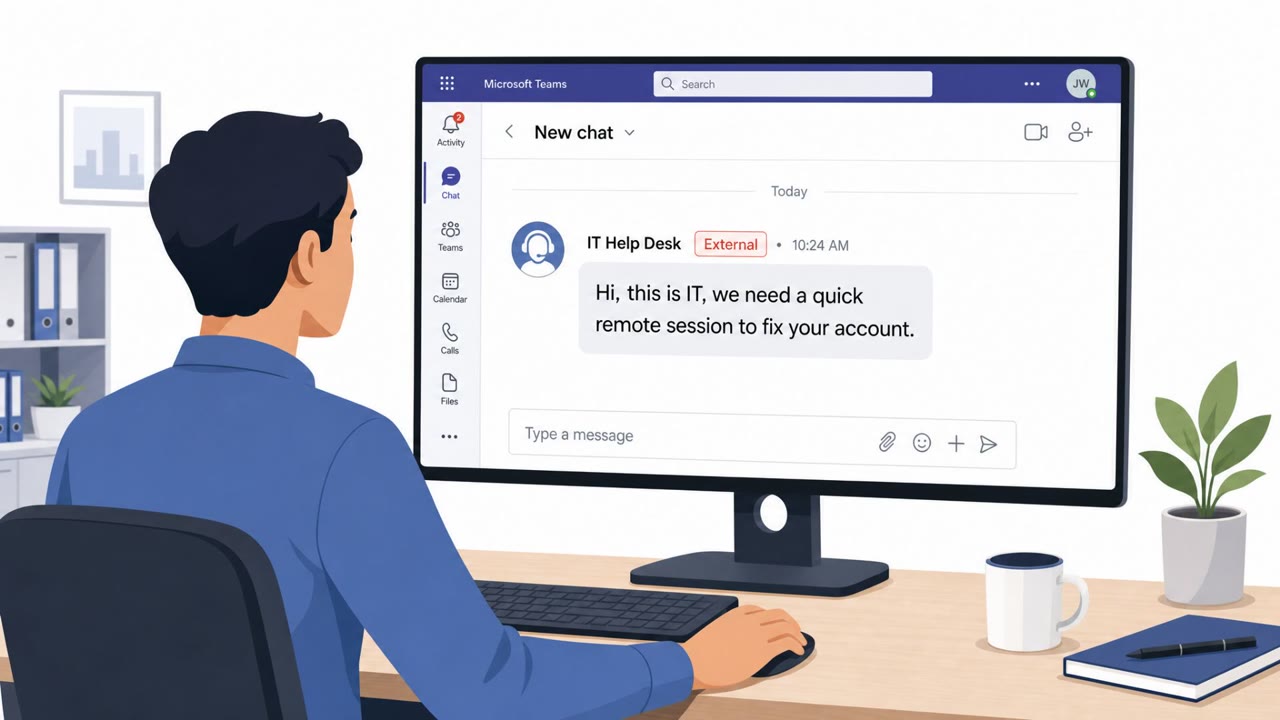
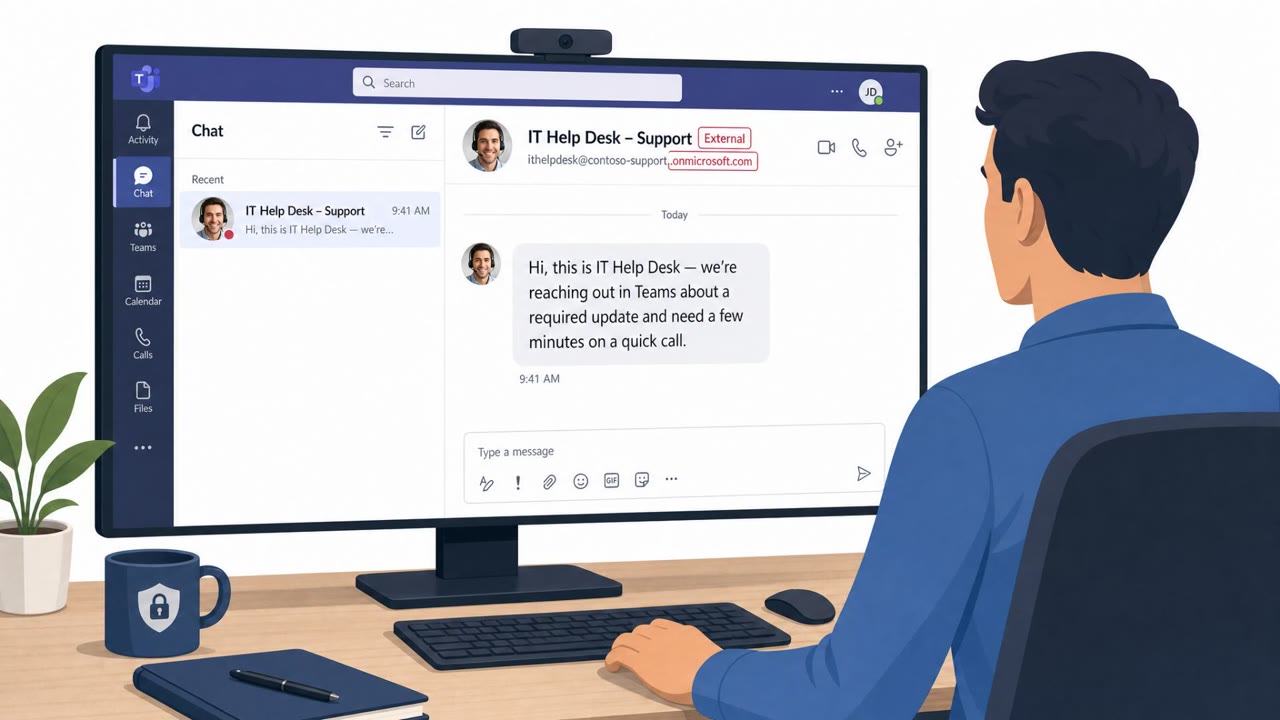
This campaign uses Microsoft Teams external collaboration features rather than traditional email phishing. The attacker contacts an employee posing as internal IT or helpdesk staff, using lures such as a security update, spam filter update, or a warning about account deactivation. Once trust is established, the victim is coaxed into granting an interactive remote session, either by approving a "request control" prompt during a Teams screen share or by opening Quick Assist and reading back a connection code.
In some cases, the operation adds a phone call to reinforce the pretext. This voice phishing layer increases trust and can also keep malicious instructions or links out of chat logs, making the interaction harder to review after the fact.
Once remote control is granted, the attacker moves quickly. PowerShell is used within the session to download a malicious MSI package from attacker-controlled cloud storage and install it silently, with installer UI suppressed so the victim sees no visible prompts. The installer is disguised with benign, update-themed names like "devfix" or "Hotfix" to reinforce the support pretext. From there, the attacker performs host and Active Directory reconnaissance and pivots laterally using WinRM toward high-value systems such as domain controllers and certificate authorities.
Why it succeeded
The attack succeeds because it uses a legitimate enterprise workflow, an internal-looking Teams message asking for routine support, instead of an obviously suspicious email. The urgency baked into the pretext (account deactivation, required updates) pushes users to bypass normal caution. Because the victim voluntarily grants access through a legitimate remote support tool, the initial access itself does not look like a compromise; it looks like a support session.
What to watch for
- Unexpected messages from external Teams contacts offering IT support
- Urgent language about account deactivation or mandatory security updates
- Requests to approve remote control or read back a Quick Assist code
- A remote-assist session that quickly opens PowerShell or cmd.exe
- Software installs that show no visible installer window or prompts
- Phone calls that discourage written instructions or bypass normal ticketing
How to build resistance
Employees should treat unsolicited IT support contact on Teams as suspicious and verify it through the organization's normal internal helpdesk channel before engaging. No remote control request should be approved unless the employee personally initiated the support ticket and confirmed the technician's identity. Security teams can reinforce this by training staff to recognize the urgency-driven pretext, watching for the process pattern of a remote-assist session followed immediately by command-line tools, and encouraging users to pause and verify rather than act quickly under pressure.
Key findings
- Attackers used Microsoft Teams external collaboration to impersonate IT/helpdesk and convince users to approve remote control.
- Victims were coached to grant access via Teams screen-share “request control” or by opening Quick Assist and reading a connection code.
- During the remote session, attackers used PowerShell to download and install a malicious MSI silently (using msiexec with UI suppressed).
- The MSI was disguised as an update (examples: “devfix”, “Hotfix”) and staged a portable Node.js runtime plus an obfuscated JavaScript implant.
- After initial foothold, the operator performed host and Active Directory reconnaissance and pivoted laterally using WinRM toward high-value assets (domain controllers, certificate authorities).
Who’s being targeted
- Commonly targeted roles: All employees, IT Helpdesk / Service Desk, IT Operations / Endpoint Support, Security Operations (SOC).
- Affected industries: Enterprise / cross-industry (organizations using Microsoft Teams).
- Attack channels: teams, vishing.
- Impersonated: Internal IT / Helpdesk, Internal IT / Helpdesk (by phone), IT/support technician during a remote session.
Red flags to watch for
- Message comes from an external Teams tenant and relies on the user overriding warnings
- Pressure/urgency about account deactivation or critical updates
- Request to grant interactive remote control rather than using standard IT ticketing/process
- Unsolicited call tied to an unexpected Teams message
- Caller pushes you to proceed quickly and discourages using normal support channels
- Caller avoids putting steps/links in writing (chat/email)
- “Update” runs with no visible installer windows/prompts
- Support session quickly opens command-line tools (PowerShell/cmd)
- Software is installed from cloud storage rather than company software portal
Frequently asked questions
How do attackers impersonate IT support on Microsoft Teams?
They abuse Teams external collaboration to contact employees, posing as helpdesk staff with lures like account verification or urgent security updates, then coach victims into approving a remote control request or Quick Assist session.
What happens after the attacker gains remote access?
The attacker uses PowerShell within the session to silently install a malicious MSI disguised as an update, then performs Active Directory reconnaissance and moves laterally via WinRM toward high-value systems like domain controllers.
What are the red flags of this attack?
Warning signs include messages from external Teams tenants, urgency about account deactivation, requests to grant interactive remote control instead of using normal IT ticketing, and installers that run with no visible prompts.
How can employees protect themselves from this tactic?
Verify any unexpected IT support contact through your normal internal helpdesk channel and never approve remote control requests unless you personally initiated the support ticket.
Read the video transcript
You’re in Teams, and a new chat pops up: “IT Helpdesk – Microsoft Security Update. I just need to remote in real quick.” This isn’t email phishing, it’s Microsoft Teams being abused. They pose as IT, ask you to accept a “request control” or read a Quick Assist code, then silently drop a fake “Hotfix” MSI and start poking around Active Directory. The giveaway: real IT doesn’t cold-DM you from an external tenant, rush you about “Spam Filter Updates,” then fire up PowerShell right after you hand over control. If a voice call joins in and avoids putting steps in chat, that’s another red flag. If anyone in Teams or on the phone asks for remote control and you didn’t open a ticket, stop. Hang up, close the chat, and contact IT yourself through the normal helpdesk channel.