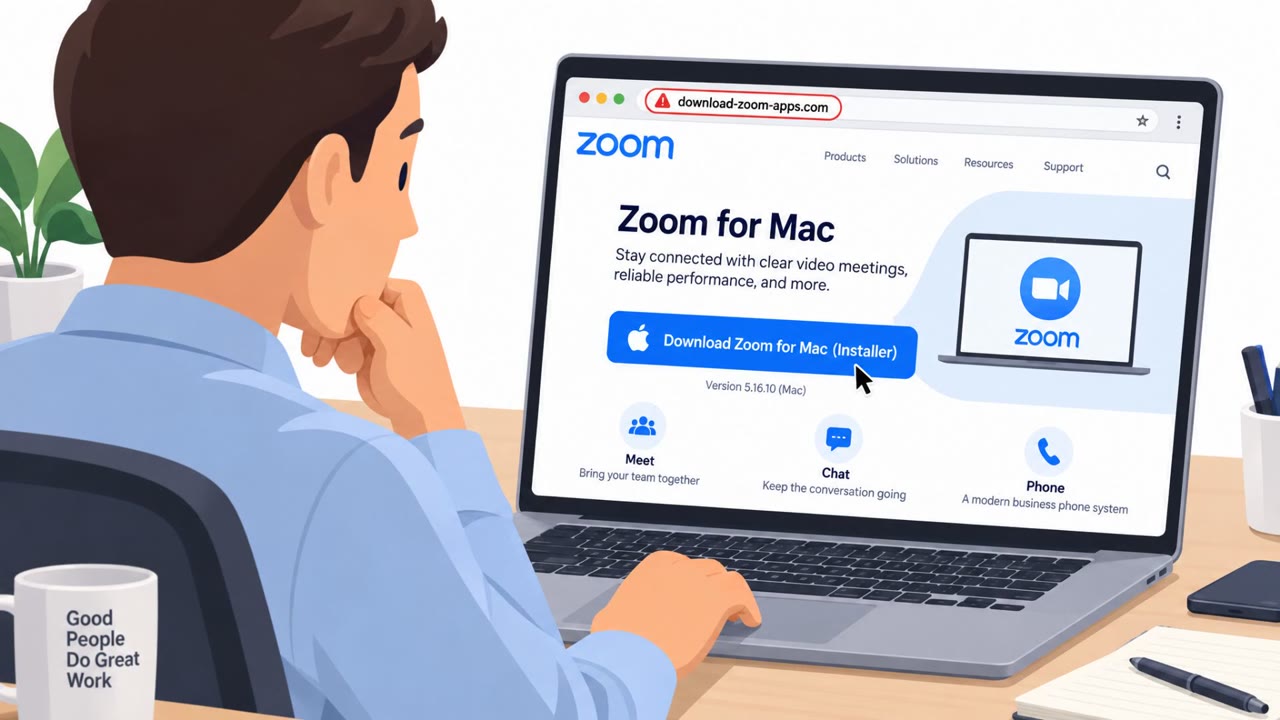
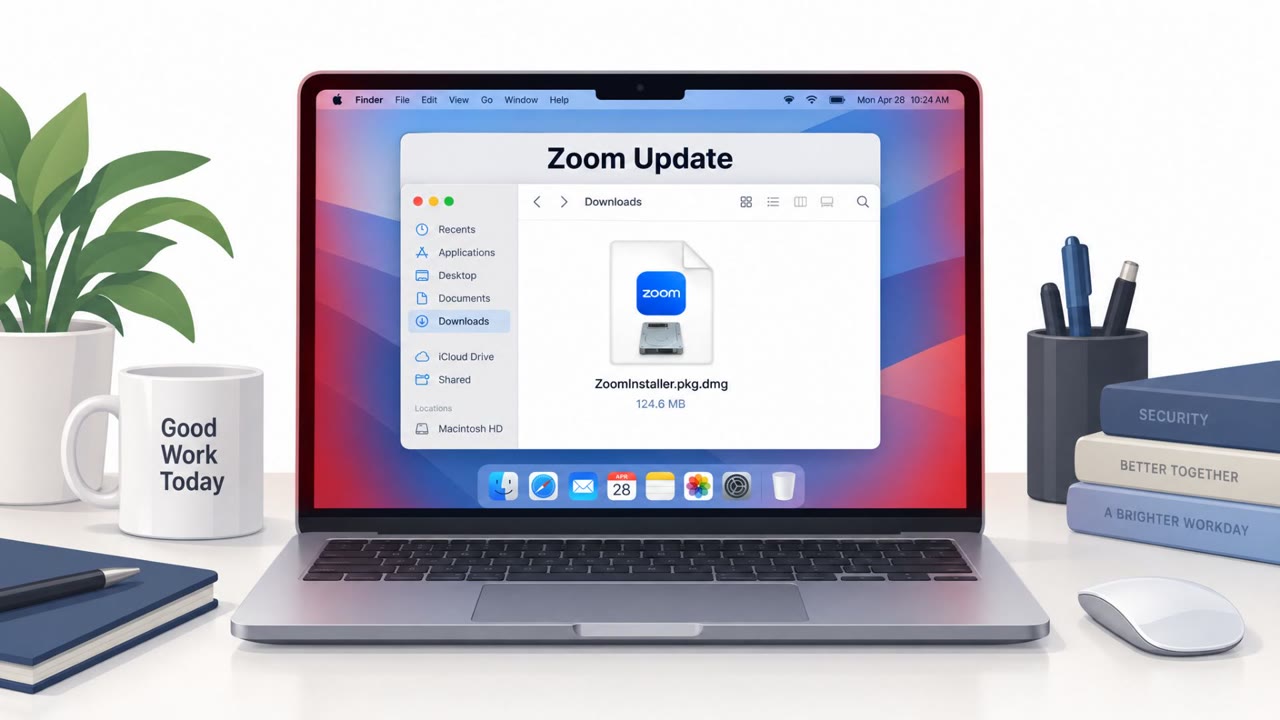
Researchers found a malicious macOS app disguised as a Zoom installer. It walks users through bypassing macOS security prompts, then repeatedly asks for the user’s password to ‘continue installation’ until the correct password is entered. The stolen password is hidden inside a fake settings file and then used to run an embedded backdoor with elevated privileges.
How the attack worked
Attackers distributed a disguised Zoom installer through a macOS disk image. Once opened, the volume appears as a legitimate Zoom installer with an app icon and Applications shortcut. A background image then walks the victim through bypassing Gatekeeper, macOS's built in protection against unsigned or ad-hoc signed apps, framing it as a necessary step to install Zoom.
After the app launches, a dialog asks for the user's macOS password, claiming it is required to continue installation. This prompt does not go away until the correct password is entered, and the dropper validates the password against the local account before proceeding. Once validated, a fake progress window reading "Downloading Zoom..." appears to keep the user believing a normal installation is underway.
Why it succeeded
The attack relies on patterns that feel routine to many macOS users: installing software from a disk image, seeing a security warning, and being asked for a password during setup. Because the installer persists with the prompt until the password is correct, users may assume they simply mistyped it rather than recognizing a credential theft attempt. The fake progress window adds a layer of legitimacy that distracts from what just happened.
Technically, the captured password is not sent out immediately. It is base64 encoded, padded with random filler text, and hidden inside a field in a fake settings file named data.json, which helps it avoid looking suspicious if the file is inspected casually.
What to watch for
- Any installer instructing you to bypass Gatekeeper or other macOS security warnings
- A password prompt that claims it is needed to "continue installation"
- Password prompts that repeat multiple times until accepted
- Generic progress windows following an unexpected password request
- Settings or configuration files that seem unrelated to the app being installed
How to build resistance
Organizations with macOS endpoints, including remote workers and executives, should treat any instruction to bypass built-in security protections as a stop sign rather than a normal step. Employees should be encouraged to verify installer sources with IT before proceeding, especially when an app requests the login password mid-installation. Since the backdoor in this case runs with elevated privileges obtained through the stolen password, reporting unexpected or repeated password prompts promptly can limit the chance that credentials are captured and misused. Building awareness around these behaviors, rather than relying solely on technical controls, is key to resisting installers that depend on convincing a user to hand over access voluntarily.
Key findings
- Attackers distributed a disguised Zoom installer via a macOS disk image that guides users to bypass Gatekeeper protections.
- The fake installer presents a password prompt that persists until the correct macOS password is entered, then shows a fake “Downloading Zoom...” progress window.
- The password is not immediately exfiltrated; it is base64 encoded, padded with random filler, and hidden inside a fake settings file (data.json) using invisible zero-width Unicode characters to mark password position/length.
- The dropper contains an embedded payload (no separate download) and attempts fileless execution first; if blocked, it writes a temp file and runs it with sudo using the stolen password.
- The backdoor checks in frequently (every 8–16 seconds) and can receive either an archive to unpack or a full executable to run.
Who’s being targeted
- Commonly targeted roles: All employees (macOS users), Executives, IT / Helpdesk, Remote workforce.
- Affected industries: Any organization with macOS endpoints, Any organization using Zoom or similar conferencing tools.
- Attack channels: website.
- Impersonated: Zoom installer (fake Zoom client), Zoom installer progress window.
Red flags to watch for
- Installer is “only ad-hoc signed” and requires bypassing Gatekeeper
- Installer asks for the user’s macOS password to proceed
- Password prompt repeats until the correct password is entered
- Unexpected admin/password prompt during a routine app install
- Progress window text is generic and could be used to distract the user
- Installer behavior focuses on validating password correctness rather than installation steps
Frequently asked questions
How does the fake Zoom installer get a user's password?
It shows a password prompt claiming the password is needed to continue installation, and the prompt keeps reappearing until the user enters the correct macOS login password, which is then validated against the local account.
What does the malware do with the stolen password?
The password is base64 encoded, padded with random filler text, and hidden inside a fake settings file called data.json, then later used with sudo to run an embedded backdoor with elevated privileges.
Why does the installer ask users to bypass Gatekeeper?
Because the app is only ad-hoc signed, macOS would normally block it, so the disk image's background image guides the victim step by step on how to bypass Gatekeeper protections.
What is a key warning sign of this attack?
Repeated password prompts during what should be a routine software installation are a major red flag, since legitimate installers typically do not keep asking until the correct login password is entered.
Read the video transcript
You double‑click a Zoom download, and it opens a disk image called “Zoom” with an app icon and an Applications shortcut. Looks normal, right? Then the background literally walks you through bypassing macOS Gatekeeper because the app is only ad‑hoc signed. Next, a fake Zoom installer pops up and keeps asking for your Mac password to ‘continue’, over and over until you type the real one. Once it finally accepts your password, a fake “Downloading Zoom...” bar appears. Behind the scenes, your login password is hidden inside a harmless-looking data.json settings file and used to run a built‑in backdoor with sudo every few seconds. Here’s your move: if any Zoom installer tells you how to bypass Gatekeeper or keeps asking for your Mac password, stop immediately and contact IT before you click again.