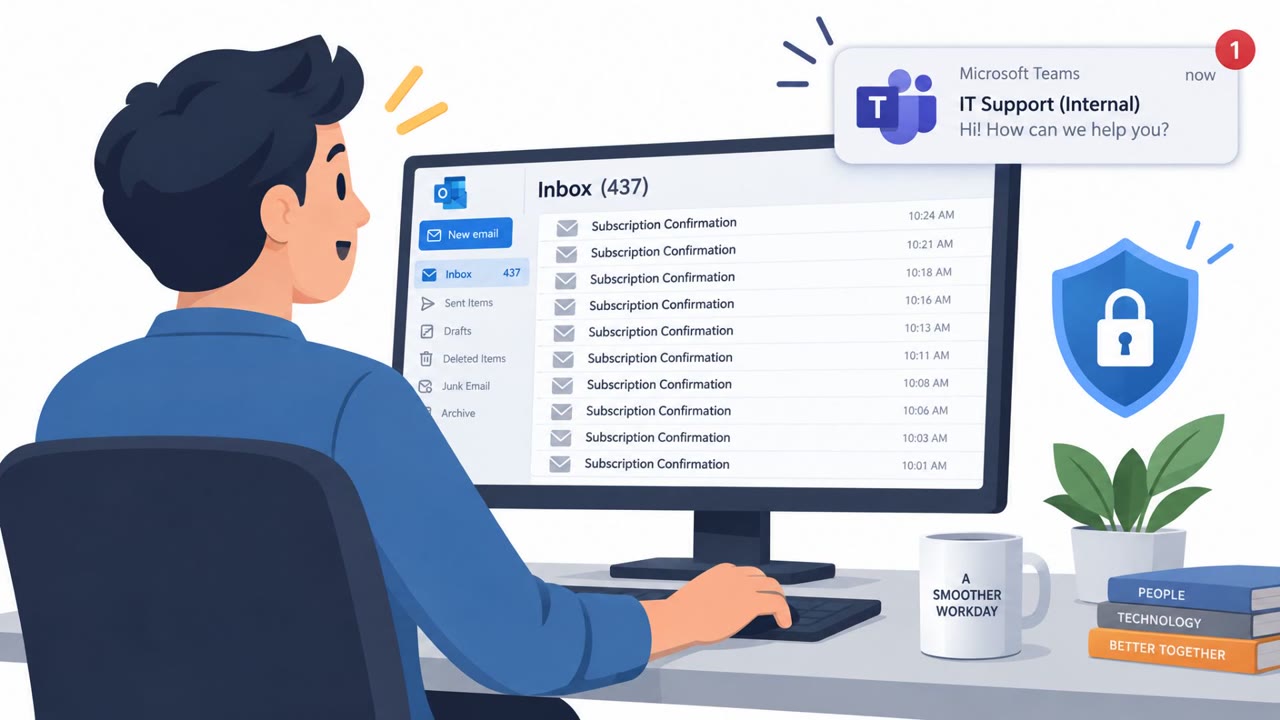
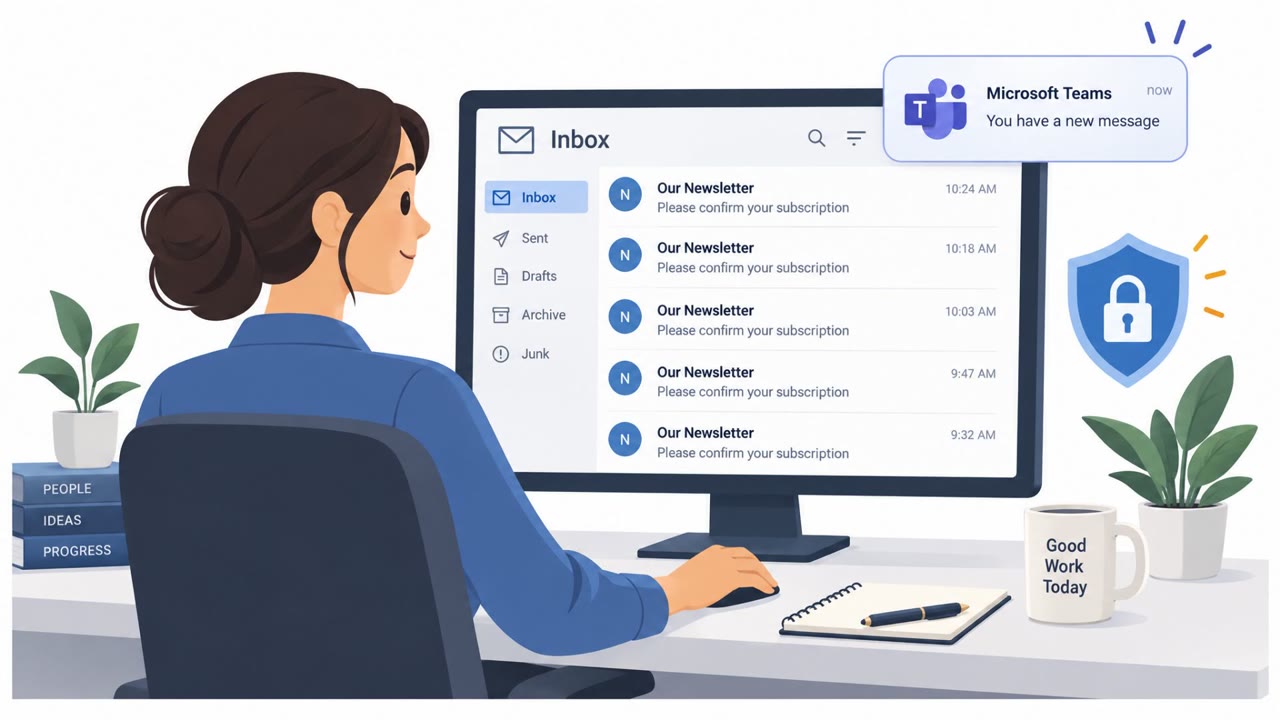
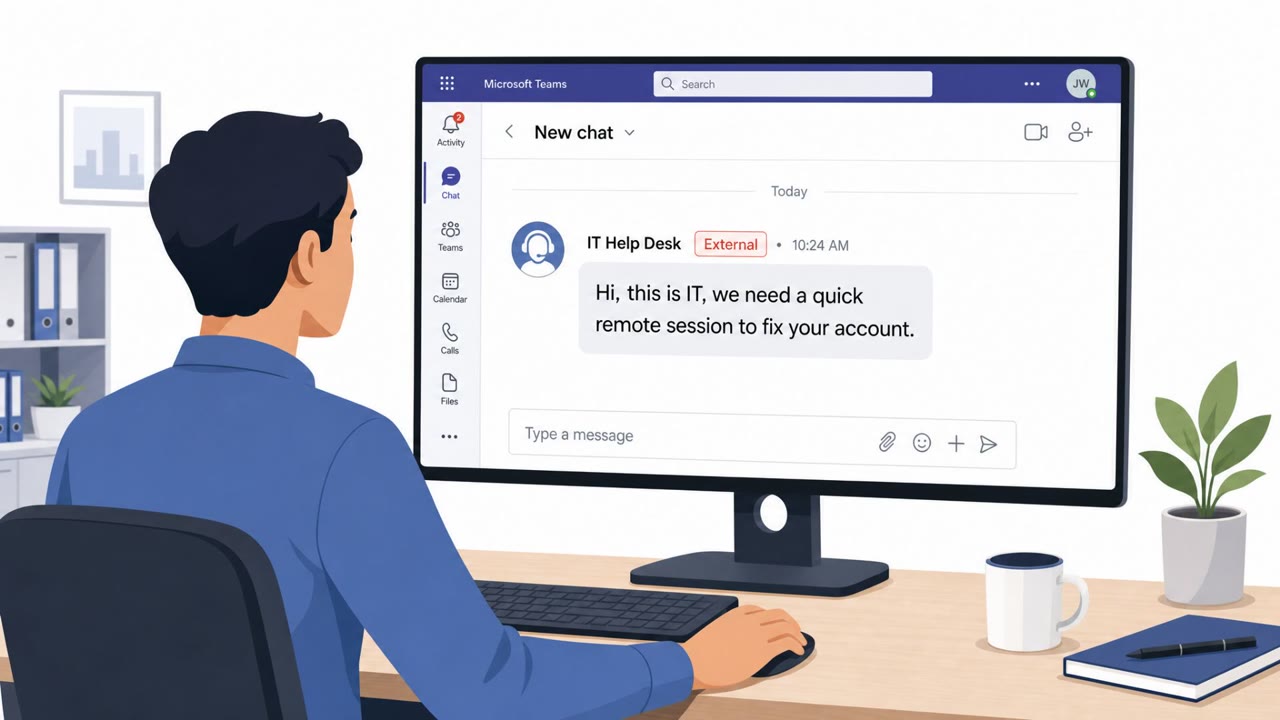
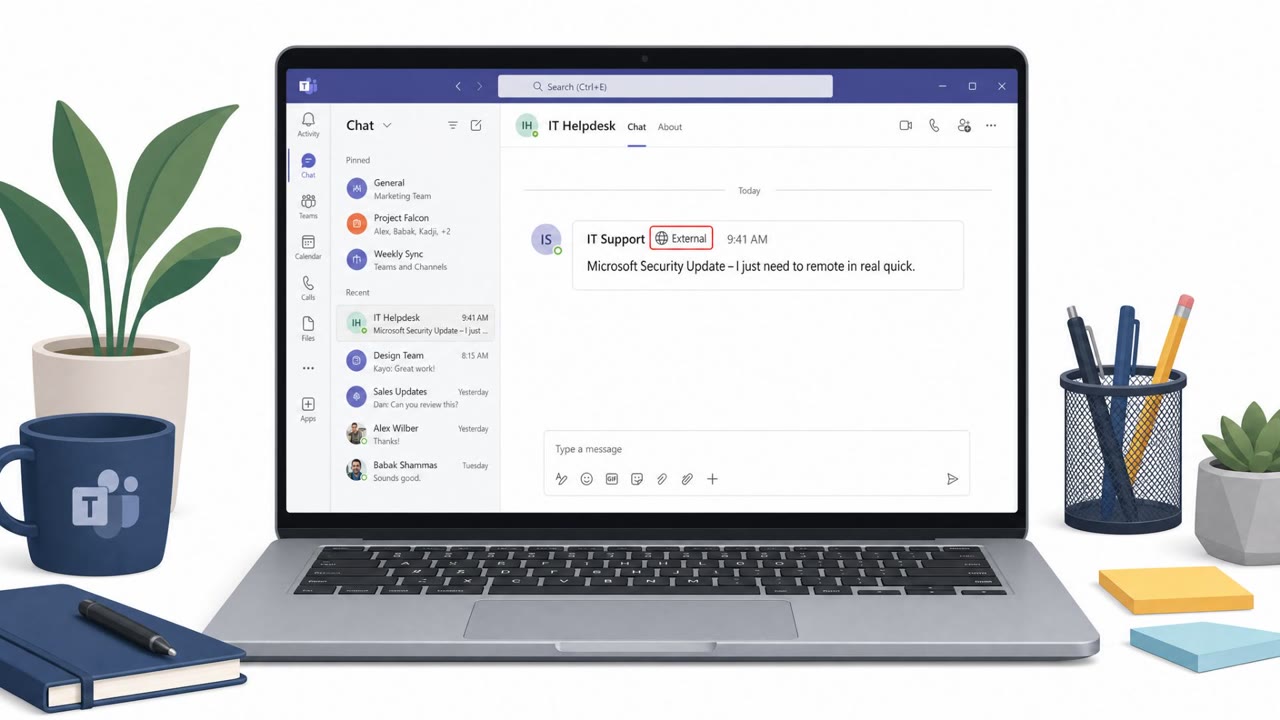
Attackers overwhelm employees with hundreds of spam messages, then contact them through Microsoft Teams while posing as internal IT support. They offer to fix the inbox problem, move victims into a voice call, and persuade them to install or use remote-access tools such as Quick Assist. The scams can lead to credential theft, data theft, and ransomware in less than 15 minutes.
How the attack unfolds
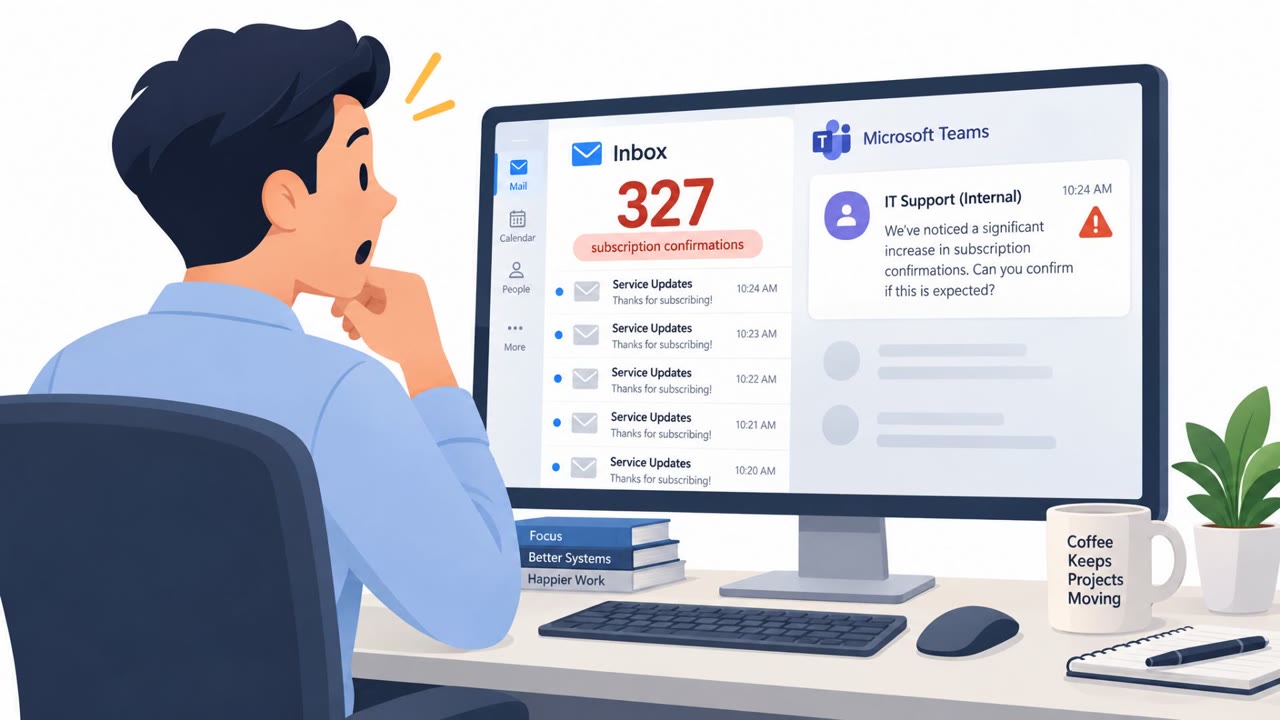
This campaign begins with a nuisance that looks harmless: an employee's inbox suddenly fills with hundreds of newsletter and subscription confirmation emails. Minutes later, a Teams message arrives from someone posing as internal IT support, offering to fix the very problem the attackers just created. The fake help desk identity often uses names like "helpdeskteam365" or "itcoreportal," adds "(Internal)" to the display name, and sometimes includes the victim company's own name or domain to build false trust.
Once the victim responds, the conversation typically shifts to a Teams voice call. The attacker asks the victim to use Quick Assist, since it ships with Windows and only requires reading back a six-digit code, or to install commercial remote-access tools such as AnyDesk or ScreenConnect. Arctic Wolf has documented more than 400 incidents involving this abuse of Microsoft Teams external chat.
Why it succeeds
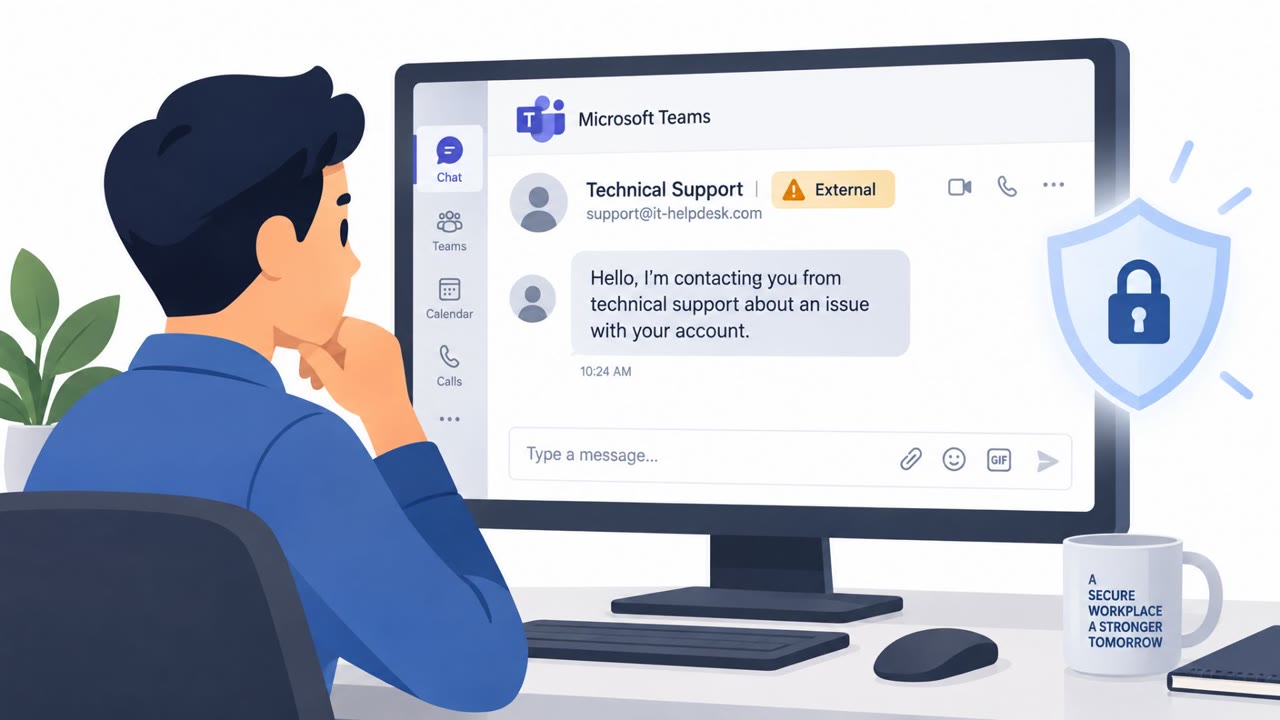
The pretext works because it solves a problem the target is already experiencing. A flooded inbox is a real, visible annoyance, and an apparent IT contact offering a quick fix feels like a welcome relief rather than a threat. The display name tricks compound this: Teams marks the sender as external, but the "(Internal)" label and company-specific naming convince many users to overlook that signal. Attackers also avoid posting malicious links directly in chat, instead waiting until the remote session is underway to download files to the device, which helps the interaction look legitimate throughout.
What to watch for
- A Teams contact from "IT" arriving shortly after an unexplained flood of spam or subscription emails.
- A sender whose Teams profile is marked external despite a display name suggesting internal status.
- Any request to read back a Quick Assist code or to install AnyDesk, ScreenConnect, or similar remote-access software.
- Pressure to move quickly from chat to a voice call and then to remote control of the device.
Building resistance
Organizations should treat unsolicited Teams messages from IT as unverified by default, especially when marked external, and route employees back to a known internal support channel rather than letting them engage directly. No legitimate help desk interaction should require handing over a Quick Assist code or installing remote-access software on demand. Because engagement can lead to compromise in under 15 minutes, with credential theft alerts sometimes firing at the same time as the first suspicious chat, rapid reporting of unexpected Teams contact is essential. Security teams should also monitor for the installation of remote-access tools following external Teams conversations, since these tools have been used as a second foothold that persists even after an initial access method is removed.
Key findings
- Arctic Wolf documented more than 400 incidents involving abuse of Microsoft Teams external chat.
- Attackers first flood employee inboxes with newsletter and subscription confirmations, then offer help through Teams shortly afterward.
- Fake IT identities use names such as “helpdeskteam365” and “itcoreportal,” often add “(Internal),” and may include the victim company's name or domain.
- After a victim responds, attackers commonly move to a Teams voice call and ask the victim to use Quick Assist or install AnyDesk or ScreenConnect.
- Attackers avoid posting malicious links in Teams; during remote sessions, they download malicious files directly to the victim's device.
- Observed incidents have led to credential theft, Active Directory discovery, data theft, and ransomware.
Who’s being targeted
- Commonly targeted roles: All employees, Microsoft Teams users, IT support and service desk staff, Windows device users, Security operations teams, Department managers.
- Affected industries: Cross-industry organizations using Microsoft Teams and Microsoft 365.
- Attack channels: email, teams, vishing.
- Impersonated: Internal IT Service Desk, Internal IT Help Desk.
Red flags to watch for
- The Teams sender is marked external despite using “(Internal)” in the display name.
- The IT contact appears immediately after an unusual flood of spam or subscription confirmations.
- The sender asks for a Quick Assist code or requests installation of remote-access software.
- The contact comes from an external Microsoft 365 tenant or an unfamiliar IT-themed domain.
- The display name uses trust-building labels, such as “(Internal),” shields, or wrench emoji.
- The person pressures the employee to allow remote control rather than directing them to the normal IT support channel.
Frequently asked questions
How does the fake Teams IT support scam work?
Attackers first flood an employee's inbox with hundreds of newsletter and subscription confirmations, then contact the employee on Microsoft Teams posing as internal IT support offering to fix the problem they created.
What tools do attackers ask victims to install?
Attackers commonly move the conversation to a Teams voice call and ask victims to use Quick Assist, which comes built into Windows, or to install AnyDesk or ScreenConnect.
What are the warning signs of this attack?
Watch for Teams messages from accounts marked external despite display names including "(Internal)," IT contact arriving right after a sudden spam flood, and requests for a Quick Assist code or remote-access software installation.
How fast can this attack lead to compromise?
Once a victim engages and grants remote access, it can take less than 15 minutes for malicious code to start running, and some organizations have seen credential theft alerts fire at the same time as the first Teams chat alert.
Read the video transcript
Hundreds of subscription emails hit your inbox. Then IT messages you. The Teams message says, ‘IT Service Desk (Matthew) (Internal): I can help fix the spam problem.’ But Teams marks the sender external. They created the problem they’re offering to fix. Next comes a Teams voice call: ‘Read me your six-digit Quick Assist code.’ They may ask for AnyDesk or ScreenConnect instead. No malicious link needed, they want remote control. Spam flood, then external ‘IT’? Contact your real help desk through your usual internal channel.