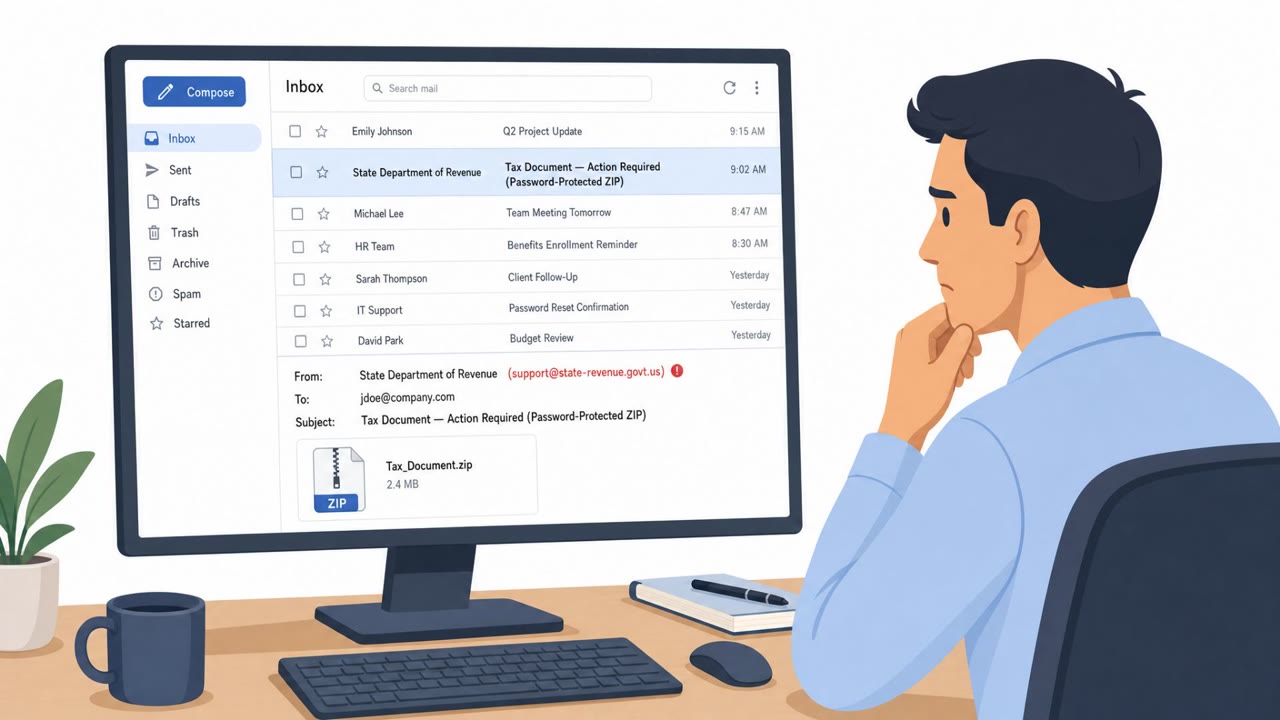
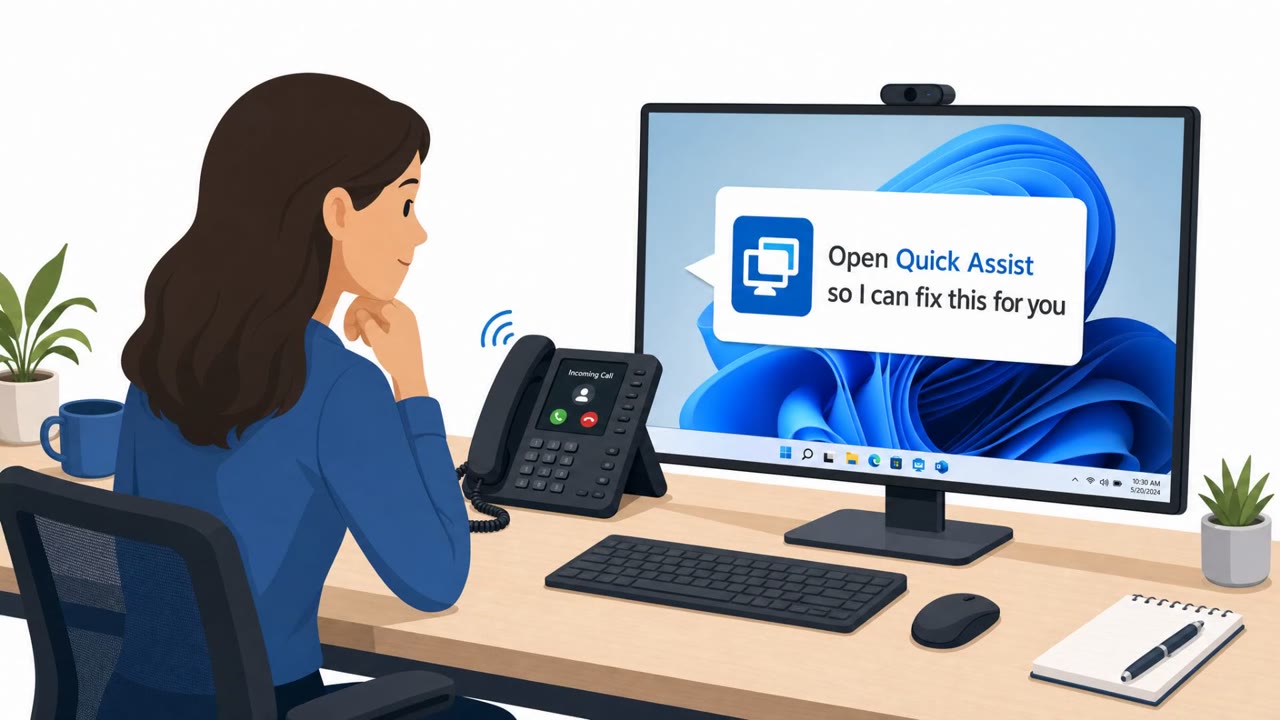
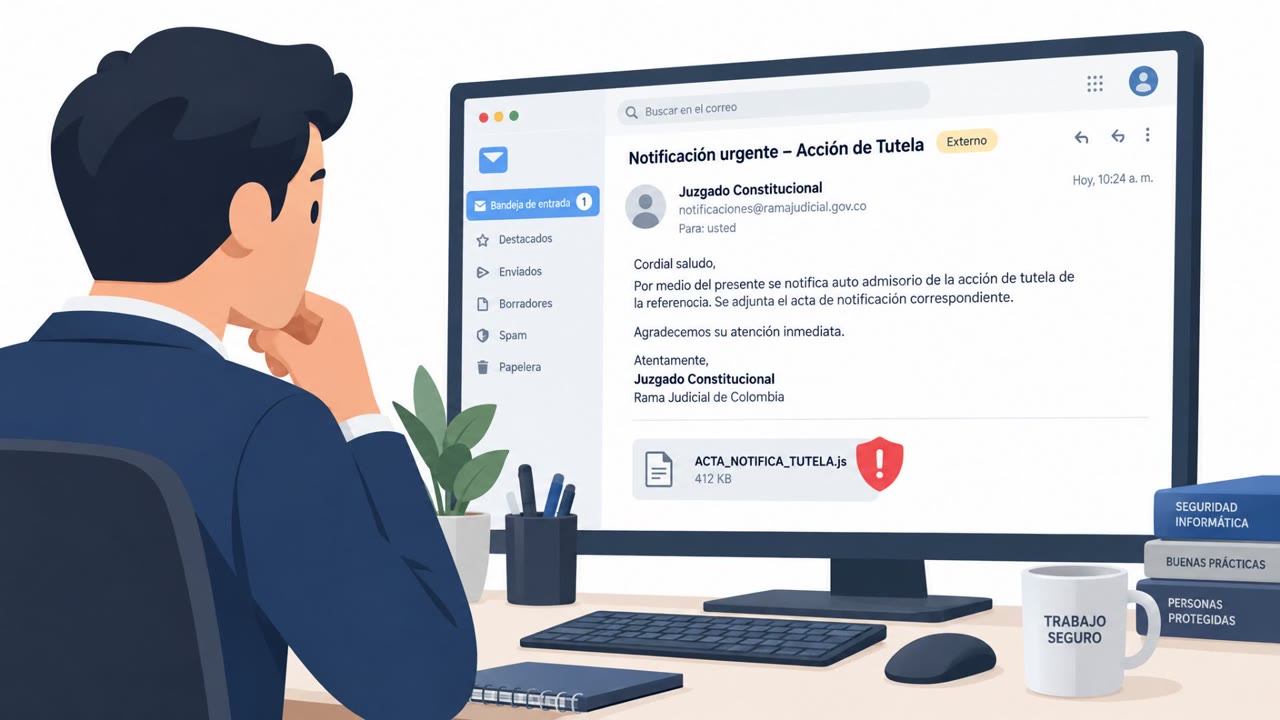
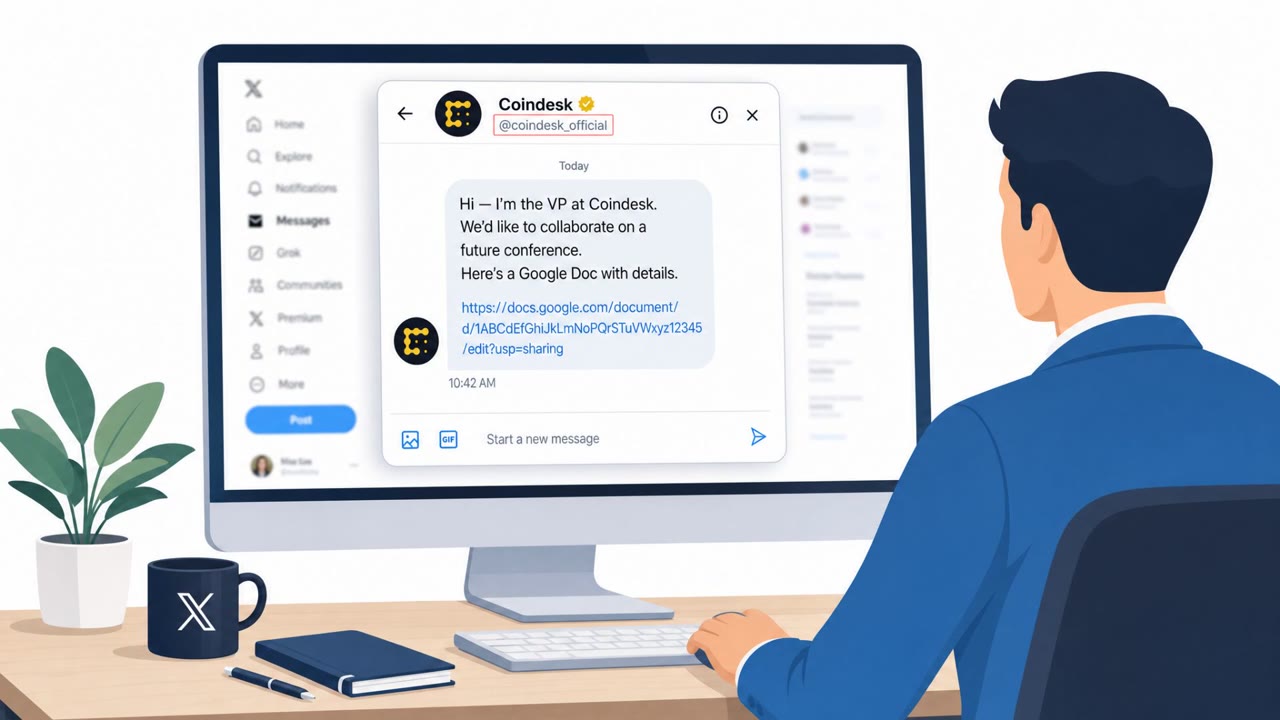
Attackers exploited a critical flaw in ConnectWise ScreenConnect and used social engineering to trick people into running a modified (rogue) ScreenConnect client. Once executed, the rogue client looked for active remote sessions and pushed VBScript files to connected systems to spread further. ConnectWise released an urgent patch (v26.6.5), and CISA added the issue to its Known Exploited Vulnerabilities list with a three-day federal patch deadline.
How the attack worked
This incident combined a critical software vulnerability with a classic social engineering hook. Attackers exploited a flaw in ConnectWise ScreenConnect, tracked as a critical severity issue, that could allow files to be transferred and executed via an active remote session without authorization or host confirmation in certain circumstances. Rather than relying purely on the technical flaw, attackers used social engineering to trick victims into executing rogue ScreenConnect clients. Once a victim ran the modified client, it checked for active remote sessions and pushed VBScript payloads to connected targets, allowing the attack to spread in a worm-like manner across systems that shared remote support connections.
Why it succeeded
The attack succeeded because it targeted a tool that many organizations already trust and use routinely: remote support software. Employees, IT support staff, and MSP technicians are accustomed to installing or updating remote access clients as part of normal support workflows, which lowers suspicion when a request to run such software arrives. The observed incidents also involved deploying four VBScript files designed to establish persistence and propagate to other ScreenConnect clients, meaning a single successful execution could enable further spread without additional social engineering steps.
What to watch for
Defenders and end users should be alert to the following patterns:
- Unexpected requests to install or run a remote-support or remote access client, especially outside of a scheduled support interaction.
- Installers or clients that are not obtained from a known internal portal or a trusted, verified link.
- Pressure or urgency framing, such as being asked to run software quickly to "start a session."
- Any unusual scripting activity following a remote session, since VBScript payloads were used in observed incidents for persistence and propagation.
How to build resistance
Organizations relying on ScreenConnect or similar remote access tools should prioritize the following:
- Patch remote access software immediately when critical vulnerabilities are disclosed. ConnectWise urged users to apply fixes in ScreenConnect version 26.6.5 as soon as possible.
- Disable the TransferFiles permission as a temporary mitigation where file transfer is not required.
- Train all employees, IT helpdesk staff, and MSP technicians to verify any unexpected remote-support installation request through a known, trusted channel before executing it.
- Apply least-privilege configurations to remote access tools to limit the blast radius if a rogue client is executed.
This case illustrates how a technical vulnerability and social engineering can reinforce each other, and why rapid patching combined with user awareness training around remote access requests remains essential for MSPs, IT services firms, and any organization using remote support tooling.
Key findings
- ConnectWise patched a critical ScreenConnect vulnerability (CVE-2026-84869, CVSS 9.9) that was exploited in the wild.
- The flaw could allow files to be transferred and executed via an active remote session without authorization or host confirmation in certain circumstances.
- Observed attacks used a modified ScreenConnect instance to deploy four VBScript files for persistence and propagation.
- Attackers relied on social engineering to get victims to execute rogue ScreenConnect clients, which then searched for active sessions and pushed VBScript payloads to connected targets.
- ConnectWise urges immediate patching to ScreenConnect 26.6.5; a mitigation is disabling the TransferFiles permission.
Who’s being targeted
- Commonly targeted roles: All employees, IT helpdesk / support, MSP technicians, IT administrators, Security operations.
- Affected industries: Managed service providers (MSPs), IT services, Any organization using ScreenConnect for remote support.
- Attack channels: email.
- Impersonated: IT support / remote support technician using ScreenConnect.
Red flags to watch for
- Unexpected request to run a remote access/support client
- Installer/client is not obtained from a known internal portal or trusted link
- Pressure to run software quickly to 'start a session'
Frequently asked questions
What vulnerability was exploited in the ScreenConnect attacks?
Attackers exploited CVE-2026-84869, a critical ScreenConnect flaw with a CVSS score of 9.9 that allowed files to be transferred and executed via an active remote session without authorization or host confirmation in certain circumstances.
How did social engineering play a role in this attack?
Attackers tricked victims into executing rogue ScreenConnect clients, which then searched for active remote sessions and pushed VBScript payloads to connected targets to spread further.
How can organizations mitigate this risk?
ConnectWise urges immediate patching to ScreenConnect version 26.6.5, and as a temporary mitigation recommends disabling the TransferFiles permission.
Who is most at risk from this type of attack?
Managed service providers, IT services organizations, and any company using ScreenConnect for remote support are affected, with IT helpdesk staff and remote support users being primary targets.
Read the video transcript
You get an email: “Please run the attached ScreenConnect client to start the remote support session.” Looks routine, right? But this is a rogue ScreenConnect client abusing a critical bug, CVE-2026-84869. Once you run it, it quietly hunts for active ScreenConnect sessions and pushes VBScript files to every connected system, spreading like a worm. Here’s the tell: real IT never cold-emails you a ScreenConnect installer. If it didn’t come from our known IT portal or a ticket you opened, and they’re pushing you to ‘run it now to start the session,’ assume it’s fake. Your move: if you’re ever asked to install or run ScreenConnect and you didn’t request support, stop and contact IT using our normal helpdesk or chat, do not run the client from that email.