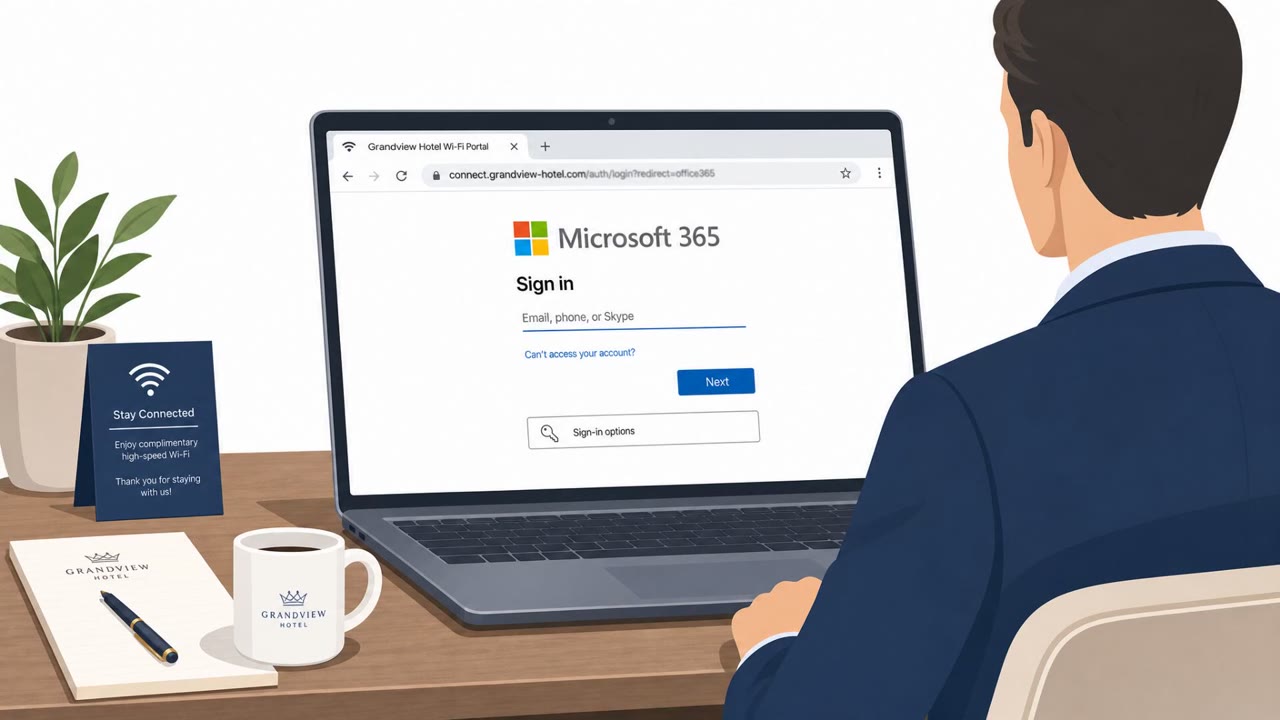
Microsoft says a Russia-linked group compromised hotel and venue Wi‑Fi captive portals to show convincing fake prompts during the normal “connect to Wi‑Fi” flow. The prompts try to trick travelers into installing malware, running commands, or approving a Microsoft sign-in that grants the attacker access. Even if a laptop is later cleaned, stolen session tokens or device-code approvals can keep the attacker’s cloud access alive after the trip.
Key findings
- Microsoft uncovered a campaign (“CaptiveCrunch”) that abuses compromised hospitality Wi‑Fi captive portals to deliver malware and steal credentials from travelers.
- Attackers manipulate DNS and unencrypted HTTP during the connectivity check, redirecting selected users to attacker-controlled pages that look like normal Wi‑Fi setup steps.
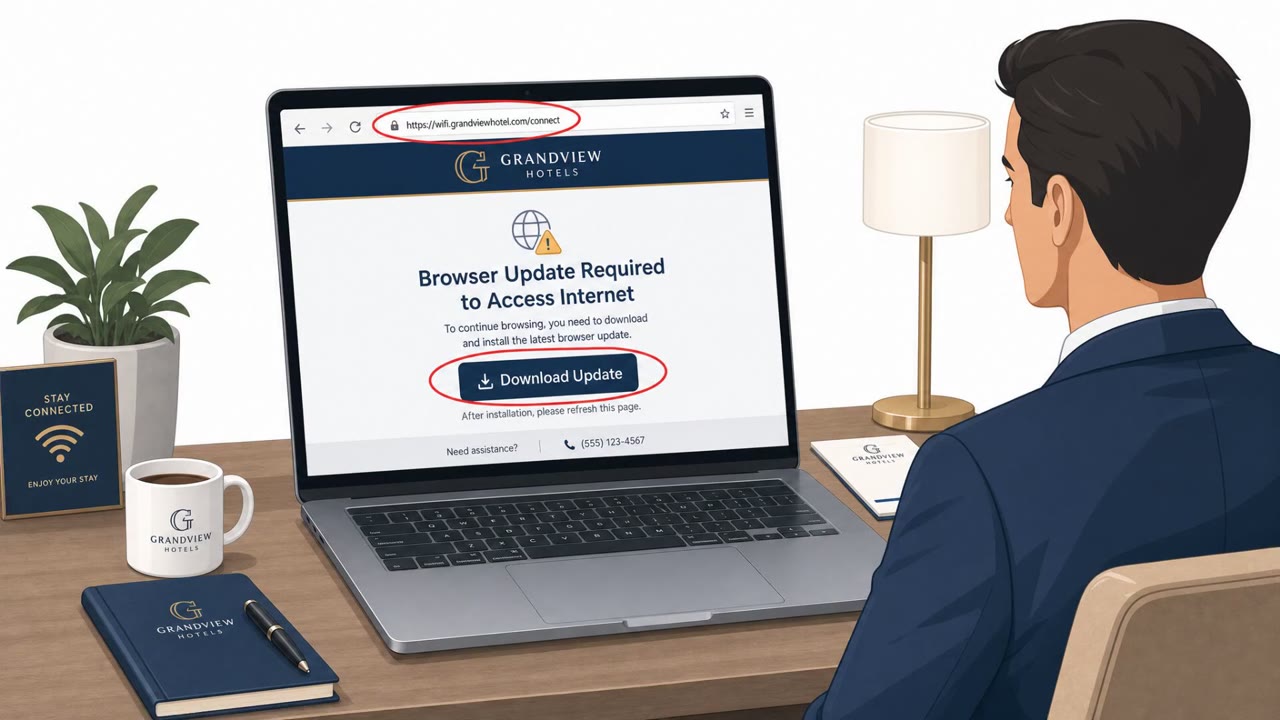
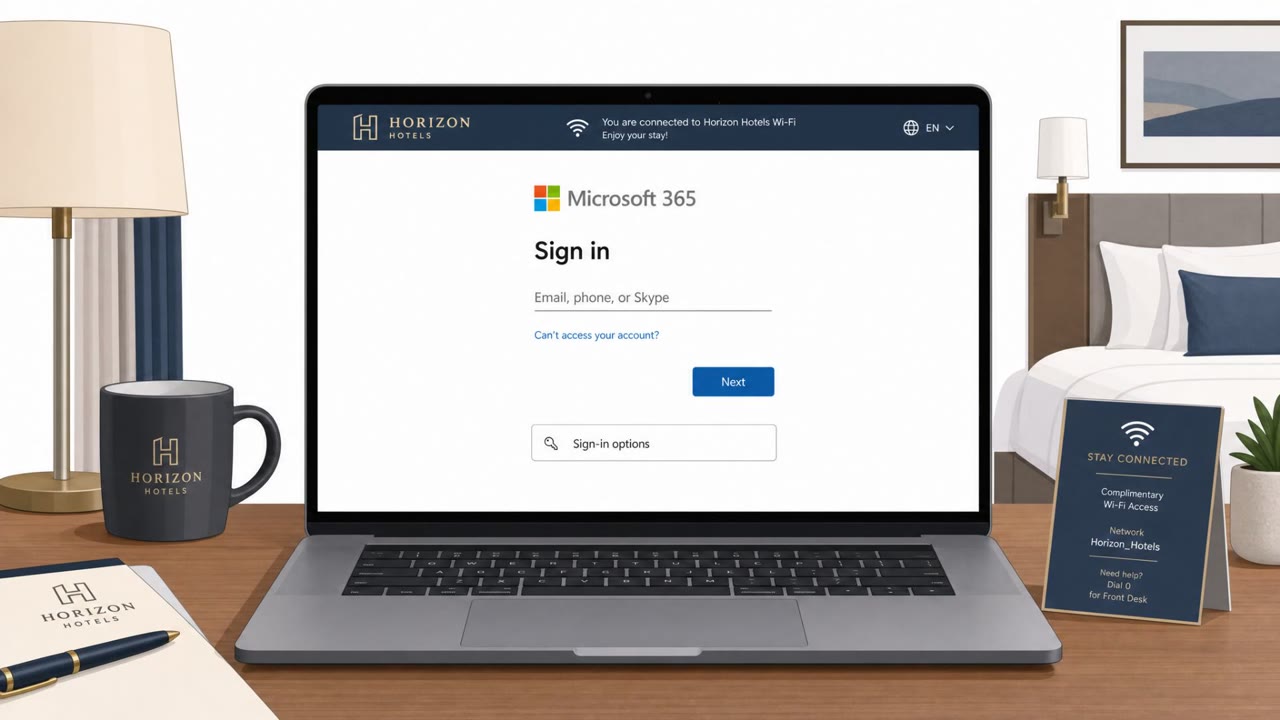
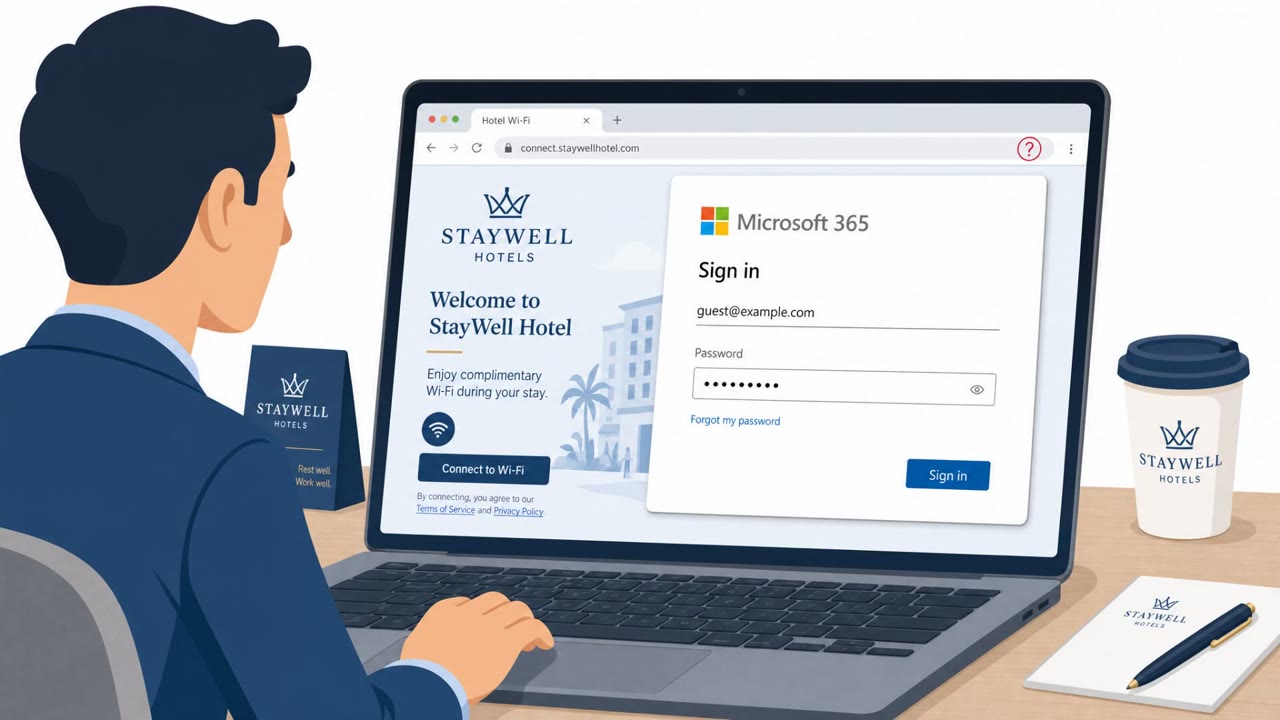
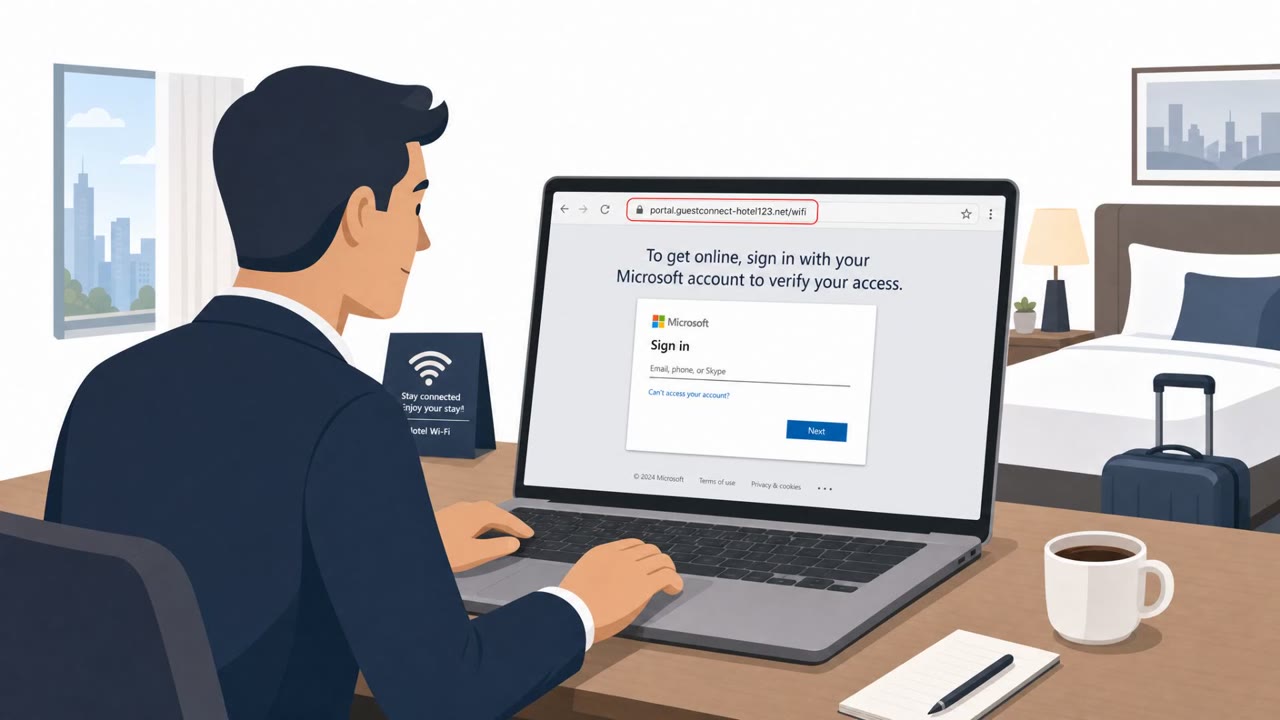
- Lures include fake Windows/browser updates, bogus driver/security fixes, “ClickFix” instructions to copy/paste and run commands, and device-code phishing that authorizes the attacker’s session.
- Infection is not automatic: the attacker relies on the user to run a file, execute a command, or approve a sign-in request.
- Post-compromise tooling described includes CornFlake (RAT), ChocoShell (cookie/password/token theft), and FruitStone (management dashboard).
- Stolen session tokens and device-code authorizations can persist in the cloud even after a device is cleaned or reimaged, creating an identity incident beyond the endpoint.
- Mitigations highlighted include avoiding guest Wi‑Fi when possible, rejecting portal-supplied updates/certs/commands, using properly configured always-on full-tunnel VPN, and restricting/blocking unnecessary device-code auth.
Who’s being targeted
- Commonly targeted roles: All employees who travel, Executives, Sales, Consultants/Professional Services, IT/Helpdesk, Microsoft 365 users, Anyone with access to sensitive email/files.
- Affected industries: Hospitality (hotels/venues), Any organization with traveling employees (cross-industry).
- Attack channels: website.
- Impersonated: Hotel Wi‑Fi captive portal / Windows or browser update prompt, Hotel Wi‑Fi captive portal / “network support” instructions, Microsoft sign-in flow (legitimate page) plus attacker-provided device code.
Awareness takeaways
- Treat any Wi‑Fi login page that offers software updates, drivers, or certificates as suspicious; only update through trusted built-in updaters.
- Never run copy/paste commands or “fix tools” provided by a captive portal or pop-up during Wi‑Fi connection.
- Report and do not approve unexpected Microsoft authorization prompts; device-code flows can grant attackers access even after you leave the hotel.
- Prefer cellular/hotspot over guest Wi‑Fi; if you must use guest Wi‑Fi, use an always-on, full-tunnel VPN configured to protect DNS before the hotel gateway sees it.
Red flags to watch for
- Updates are offered by the Wi‑Fi login page instead of the normal Windows/browser updater
- Unexpected update/driver prompt appears during Wi‑Fi sign-in
- Pressure to install software just to get internet access
- Any portal that asks you to run commands is abnormal for Wi‑Fi access
- Copy/paste command instructions during Wi‑Fi login
- Troubleshooting utilities provided by an untrusted connection page
- Unexpected Microsoft authorization request during Wi‑Fi setup
- Being told to use a code you did not initiate yourself
- Sign-in approval request that doesn’t match what you’re trying to do
Read the video transcript
You’re in a hotel, you click “Connect to Wi‑Fi”… and the login page suddenly says you need a Windows or browser update to get online. Microsoft calls this CaptiveCrunch: compromised hotel Wi‑Fi portals that inject fake updates, ClickFix-style copy‑paste commands, or even a Microsoft sign‑in box that secretly approves the attacker’s session. Here’s the nasty part: joining the Wi‑Fi isn’t what gets you. It’s when you run their file, paste their command, or approve that device‑code sign‑in. That can give them cloud access that survives even after your laptop is wiped. Aha moment: hotel Wi‑Fi should NEVER ask you to install software or run commands. If it does, stop, disconnect, and report it, then use cellular or your VPN instead.